Connect any MCP server to Claude Code and Claude Desktop


Connecting an MCP server to both Claude Code and Claude Desktop involves more than copying the same configuration into two places.
In Claude Code, MCP servers can be configured at different scopes, including local, project, and user levels. Once the configuration is in place, the server may still need to be approved before you can verify that it is actually connected. Claude Desktop handles this differently: local MCP servers can be loaded through Extensions or the Developer configuration, while remote servers follow a separate connection flow. As a result, an MCP server that works in Claude Code does not automatically become available in Claude Desktop.
Another common source of confusion is treating “added,” “approved,” “connected,” and “able to complete the task” as the same thing. They represent different stages.
“Added” only means the configuration has been registered. “Pending approval” means the server is still waiting for authorization. “Connected” means the MCP connection has been established successfully. But even when all of those steps are working as expected, the agent may still be unable to complete the actual task.
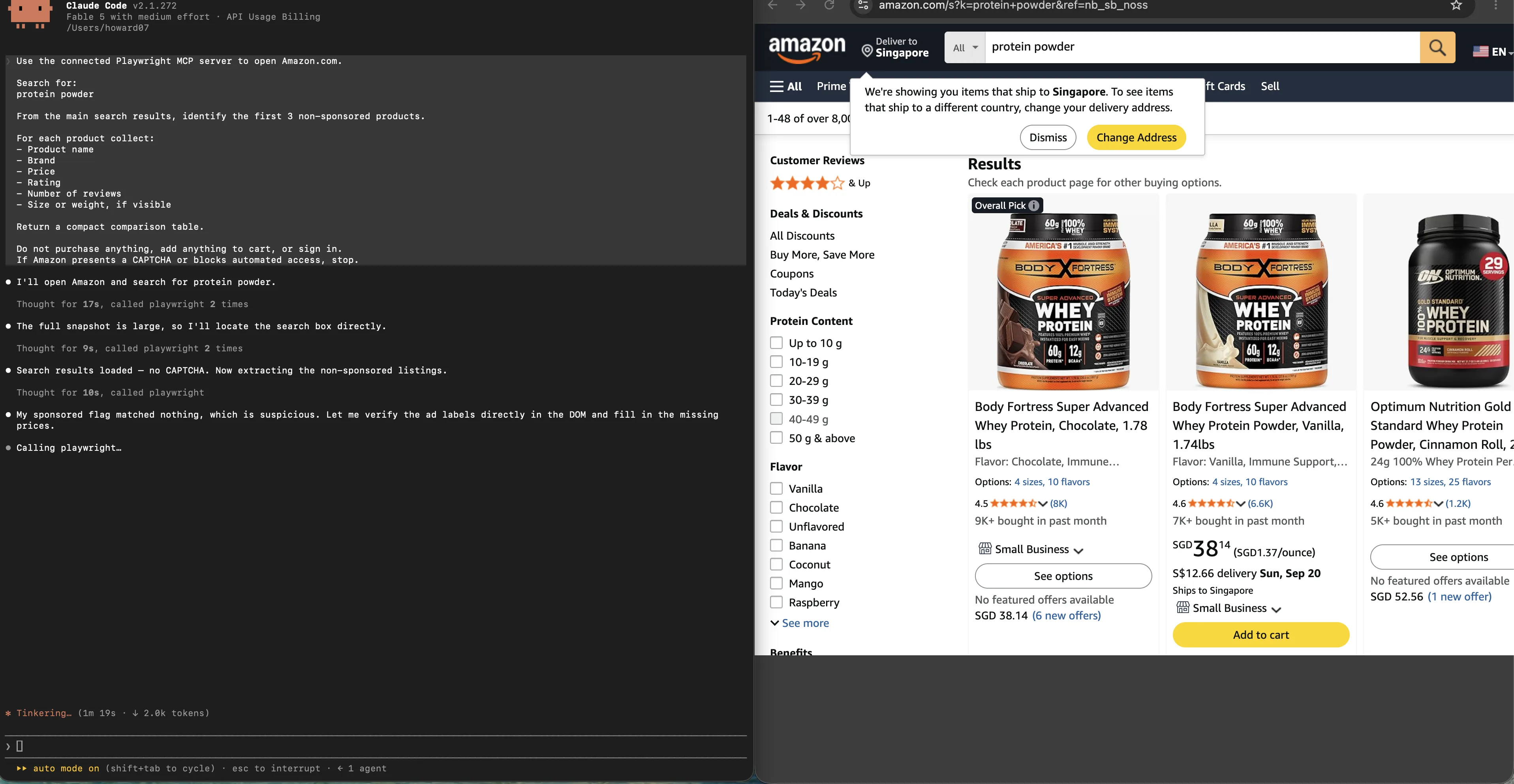
This is especially relevant for MCP servers that interact with the browser. The server may be connected and its tools available, but the task can still fail if the browser does not have the required login session, cookies, or other runtime state. At that point, the MCP configuration itself may already be correct—the missing piece is the browser environment.
This is the layer that ego(lite) is designed to handle. The agent can continue working inside a real browser environment that already has the state the task requires, including existing login sessions and the current page state. Instead of repeatedly changing an MCP configuration that is already working, the agent can move on to the browser task itself.
So when troubleshooting MCP, don’t stop at whether the server shows “Connected.” Identify which layer is actually failing: Has the server been added? Has it been approved? Is it connected? And does the browser have the state required to complete the task?
What you are actually connecting
Two parties sit on either side of the wire. The client is the Claude app: it discovers tools, decides when to call them, and shows you the result. The server is a separate process or a remote endpoint that owns the actual capability: a database, a ticketing system, a filesystem, or a browser. MCP itself is only the contract between them, which is why the vocabulary is worth keeping straight: nothing in this guide depends on which server you chose, because the setup mechanics are identical across all of them.
The protocol itself is defined at modelcontextprotocol.io, the reference for transports, capabilities, and the client-server contract.
The practical consequence is that connection problems almost never live in the server. They live in the three places where the client decides whether to run it at all: which config file it read, whether it can reach the endpoint, and whether you approved it. Keep those three separable in your head and debugging becomes a short checklist rather than an afternoon.
Pick a scope before you type anything
Claude Code gives you three places to put a server definition, and picking the wrong one is the single most common reason a server “disappears”: it connected fine, in a directory you are no longer standing in.
| Scope | Loads in | Shared with your team | Stored in |
|---|---|---|---|
| local | The current project only | No | ~/.claude.json, under that project's path |
| project | The current project only | Yes, through version control | .mcp.json in the project root |
| user | Every project you open | No | ~/.claude.json |
Local is the default. Reach for it while you are testing a server you are not sure about, and for anything carrying a credential you do not want in a repository. Choose project when the server genuinely belongs to the codebase (a project-management server for a team repo, say), because that entry travels with the checkout and each teammate gets one approval prompt. Choose user for servers that are about you rather than about the code: a personal notes server, a home-lab endpoint, the thing you reach for in every session.
One behavior to internalize before you create duplicates: when the same server name exists in more than one place, Claude Code connects once and takes the entire entry from the highest-precedence source. Precedence runs local, then project, then user, then plugin-provided servers. Fields are not merged, so a project entry that omits one optional key is not silently patched by a more complete user entry; the whole project entry is what runs.
| If you want… | Use |
|---|---|
| A server for this repo, for everyone who clones it | project |
| A server everywhere on your machine, shared with nobody | user |
| A server you are still evaluating, local to this folder | local |
Add a server to Claude Code
Claude Code ships one command with several shapes depending on how the server is delivered. A remote server over HTTP is the simplest case, because there is nothing to run locally:
# Remote server over HTTP (the recommended transport)
claude mcp add --transport http <name> <url>

# With an auth header
claude mcp add --transport http secure-api https://api.example.com/mcp \
  --header "Authorization: Bearer your-token"
A local server runs as a child process, so the command and its arguments come after a double dash. That separator is not cosmetic: everything after it is passed to the server untouched, which is what stops Claude Code from trying to parse the server's own flags as its own.
# Local server as a child process
claude mcp add [options] <name> -- <command> [args...]

# Real shape, with an environment variable
claude mcp add --env API_KEY=your-key --transport stdio airtable \
  -- npx -y airtable-mcp-server
When the server vendor hands you a JSON snippet, which is most of them because the same snippet works in every MCP client, you can paste it directly instead of transcribing it into flags. Pass the object inside mcpServers, not the wrapper around it:
claude mcp add-json weather-api \
  '{"type":"http","url":"https://api.weather.com/mcp","headers":{"Authorization":"Bearer token"}}'
Two flags are worth knowing even though neither is required. The scope flag picks where the entry lands, spelled either way:
claude mcp add --transport http stripe --scope local https://mcp.stripe.com
claude mcp add --transport http notion -s user https://mcp.notion.com/mcp
Two variants of the same command often get confused. The plain add command rewrites the named entry wholesale, which is what you want when a vendor changed their URL. The add-json form takes the same object and keeps it as a single entry, which is what you want when the server needs several fields at once:
Verify it actually connected
A successful add prints an Added line, and that line means one thing only: the configuration was written to disk. It says nothing about whether the server runs. The command that answers the real question is the list command, which reports a health status per server: connected, needing authentication, or failed to connect.
The command-level reference for each subcommand is the official Claude Code MCP documentation, which is worth reading alongside this walkthrough.
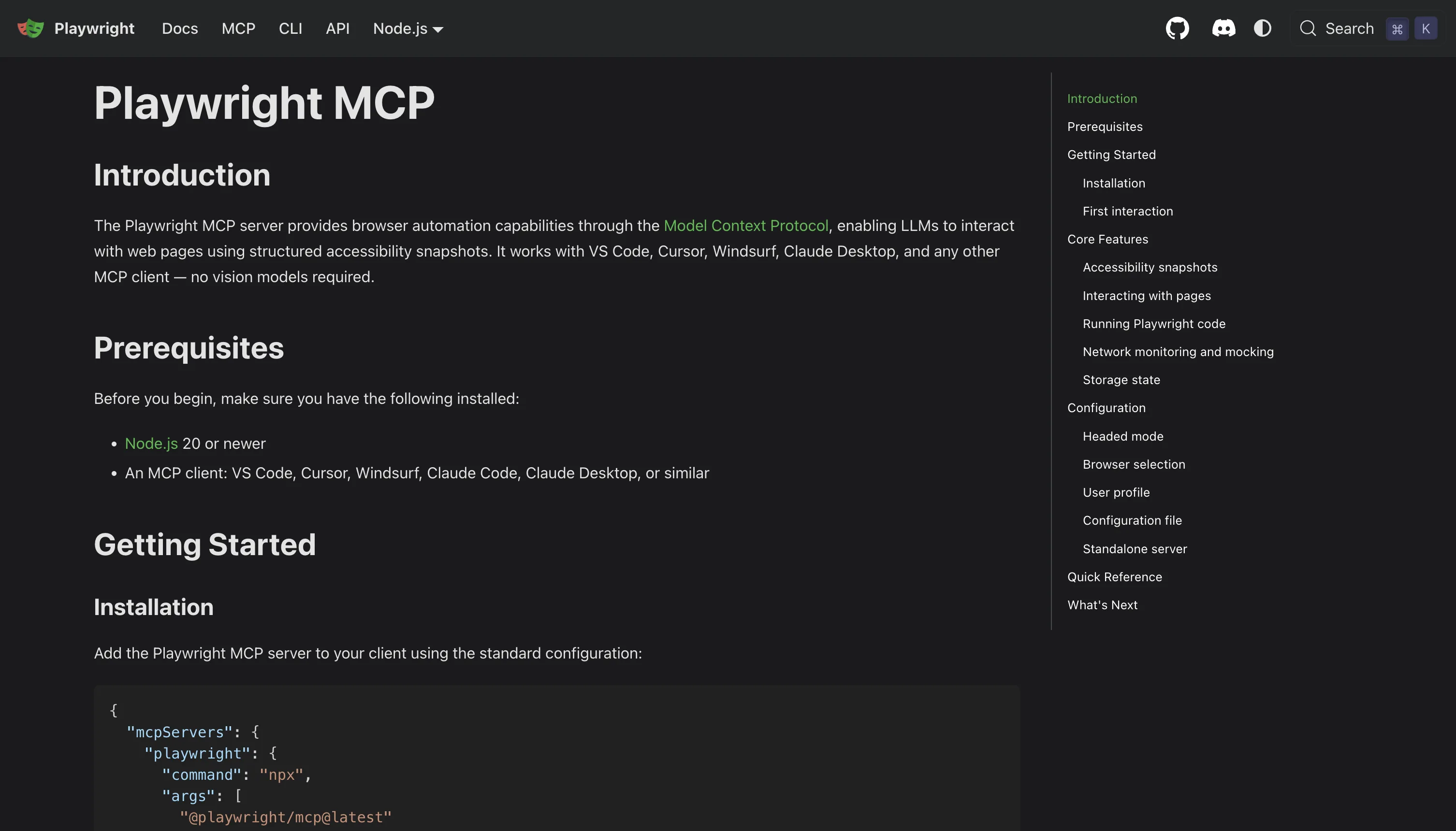
For the browser server this guide uses as its example, the install and registration steps are in the Playwright MCP setup guide for Claude Code and Cursor.
claude mcp list          # health status for every configured server
claude mcp get notion    # detail for one server, including its Issue line
When a status shows a failure, the list command appends the failure detail to that line, and the single-server view repeats it on an Issue line with the HTTP status or error code plus whatever text the server returned. Treat that detail as the primary evidence rather than re-reading your JSON. Credential-like text is redacted from it, and the expanded URL is deliberately never included, because a URL can carry a secret in its query string.
Not every status comes from an attempted connection. Some report a configuration decision, and Claude Code prints them without contacting the server at all. A project-scoped server from the shared file sits at pending approval until you run the interactive client once and accept the prompt. A server listed in your settings as disabled shows as disabled for this project and comes back from the in-app panel. A server rejected by a settings entry appears in the single-server view but not the list, which is a useful distinction when a server you know you added seems to have vanished.
There is a trust gate on top of that. The list and detail commands read the shared project file's approvals only from settings that are not committed to the repository, until you trust the workspace by running the client there and accepting the trust dialog. A cloned repository cannot approve its own servers: a list of pre-approved servers committed to the project's settings is ignored in an untrusted folder, and the server stays at pending approval instead of being health-checked. That is a deliberate defense, not a bug, and it is the reason a fresh clone looks like it lost your servers.
WebSocket servers are the exception to all of the above: they do not appear in the list output at all. Use the single-server view or the in-app panel to check them.
Add the same server to Claude Desktop
Desktop is a different animal, and the change that trips people up is that its primary documented path for local servers is no longer a JSON file. The current flow is packaged extensions: open Settings, go to Extensions, browse the directory or use the developer section to install a bundled .mcpb package, then fill in whatever settings the package asks for. Required values such as API keys are collected through the interface, with sensitive fields encrypted by the operating system's secure store. Directory extensions update themselves; a privately distributed one needs a manual reinstall when a new version ships.
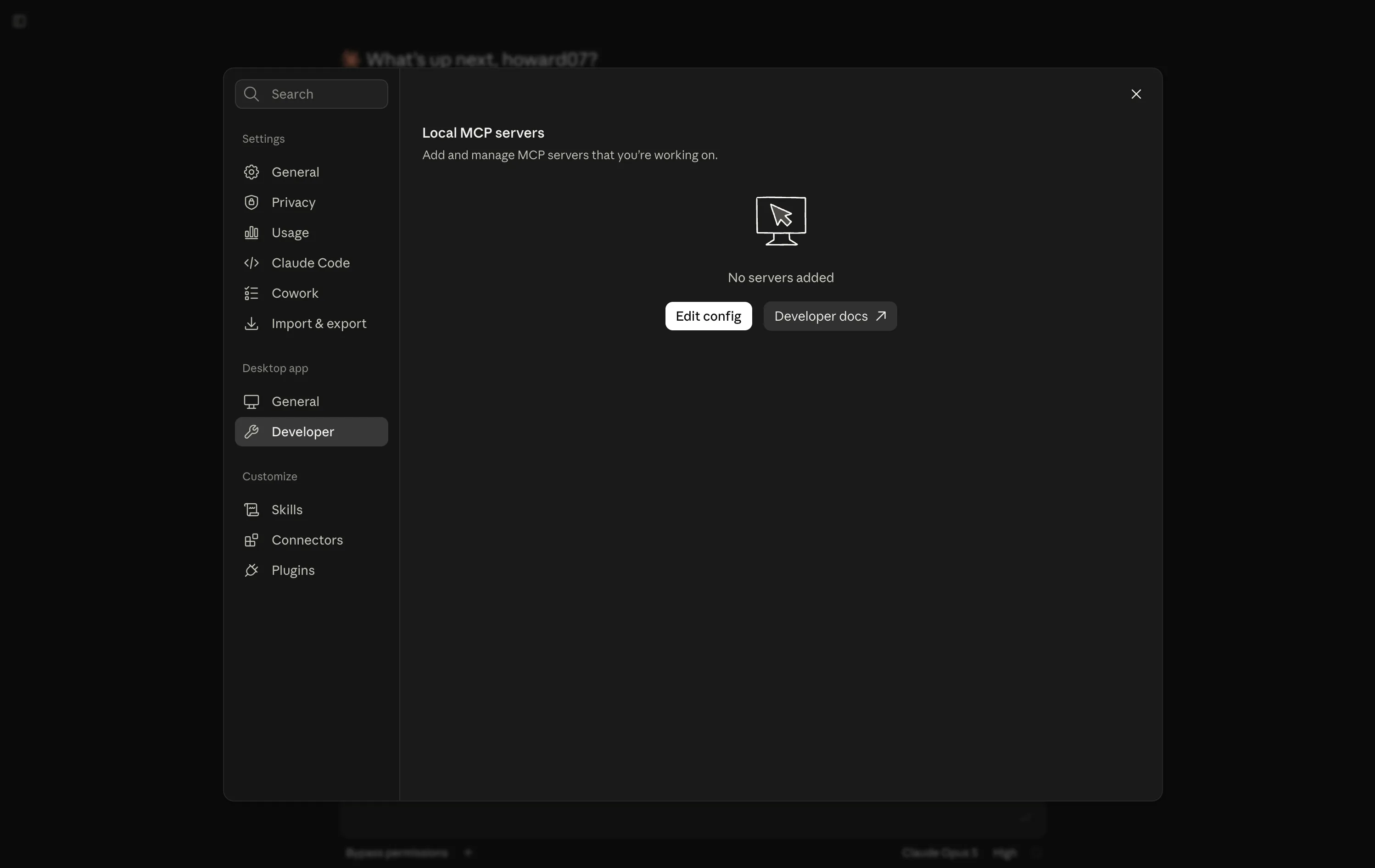
If a vendor still hands you a JSON snippet and no package, the manual route has not disappeared. It has moved. Open the desktop app's menu, choose Settings, then Developer, and use the edit-config control, which creates the file if it does not exist and opens it if it does. On macOS that file lives at ~/Library/Application Support/Claude/claude_desktop_config.json; on Windows it lives at %APPDATA%\Claude\claude_desktop_config.json. Most local servers are launched through npx and need Node.js installed, and the app reads the file only at startup, so a full quit and relaunch is part of the procedure rather than a superstitious extra step.
| Route | Best for | Where it runs |
|---|---|---|
| Desktop extension (.mcpb package) | The shipped, documented default for local servers | Your machine |
| Hand-edited desktop config file | Vendors who only publish a JSON snippet | Your machine |
| Custom connector (remote MCP) | A server you host or subscribe to, reachable by URL | Claude's cloud infrastructure |
Remote servers take the third route, and it is genuinely remote in the network sense: Claude reaches the server from Anthropic's cloud rather than from your device. That has two consequences people discover the hard way. Your server must be publicly reachable, so a service bound to a private network needs its ranges allowlisted before it will connect. And the connector authenticates with OAuth rather than a file path, which is why a remote connector can work on a machine that has never run the server's code.
For individual accounts the path is the connectors screen in the customization settings, where you add a custom connector and paste the server's URL; an advanced section accepts an OAuth client ID and secret when the server does not support dynamic client registration. On an organization plan, an owner adds the connector at the organization level and members then authenticate individually. Plan limits apply (a free account is capped at a single custom connector), and a connector appears as custom unless its domain matches a listing in the directory.
The config shape both apps agree on
Underneath the different surfaces, the entry is the same object. A remote server is a type, a URL, and optional headers. A local server is a command, its arguments, and an optional environment block. This is the shape to compare against when a vendor's documentation and your file disagree:
{
  "mcpServers": {
    "remote-example": {
      "type": "http",
      "url": "https://mcp.example.com/mcp",
      "headers": { "Authorization": "Bearer YOUR_TOKEN" }
    },
    "local-example": {
      "type": "stdio",
      "command": "npx",
      "args": ["-y", "@example/mcp-server"],
      "env": { "CACHE_DIR": "/tmp" }
    }
  }
}
Three details in that object cause most of the avoidable failures. A stdio entry with a relative path in its command breaks the moment the working directory changes, so use absolute paths. A Windows path inside a JSON string needs escaped backslashes, or the file parses as a malformed string. And a remote entry with no type at all is read as a local server, which produces a confusing error about a missing command rather than anything about the URL.
Where the two apps diverge is naming. Claude Code requires names made of letters, numbers, hyphens, and underscores, while a desktop config key is more forgiving. Keeping the name identical in both places is the cheapest way to keep your own notes straight.
Credentials, variables, and the trap in ${VAR}
Hard-coding a token into a config file is how secrets end up in a repository, so MCP configs support variable expansion. The syntax has two forms, a bare one and a defaulted one, and expansion covers the command, its arguments, the environment block, the URL, and the headers:
{
  "mcpServers": {
    "api-server": {
      "type": "http",
      "url": "${API_BASE_URL:-https://api.example.com}/mcp",
      "headers": { "Authorization": "Bearer ${API_KEY}" }
    }
  }
}
The behavior when a variable is missing is where the trap sits, and it is different for the two categories of variable. An ordinary variable that is unset and has no default does not break the config: the server still loads, the health list reports a missing-variable warning for it, and the unexpanded text is used as the literal value. That warning is the tell, and it is easy to scroll past.
A named set of credential variables behaves differently in a remote server's URL and headers: they read as empty, with no warning at all, and a default value attached to them is ignored. The practical difference is that the first category fails loudly and the second fails silently: you get an unauthenticated request and whatever error the far end returns for it, with nothing in your own config pointing at the cause. If a remote server reports authentication errors while your variables look correctly set, check the actual environment the client process inherited before you check the token itself.
There is a second, narrower rule for project-scoped entries: referencing the project-directory variable in a command or argument requires you to supply a default for it, because the value is not guaranteed to be set at the moment the entry is read. Plugin-provided configs substitute it directly and are not subject to the same requirement.
Troubleshooting the connection
Work from the outside in, in four steps: does the server start, does the transport reach it, does the handshake complete, and can the agent actually do the work. Each step has a distinct symptom, and the ordering matters because a failure in the first one makes everything after it look broken too.
For the same diagnosis applied to a browser server specifically, Chrome DevTools MCP: setup, existing sessions, and fixes walks the connection and profile failures in order.
The server does not start. Take the command and arguments out of the config and run them in a plain terminal. If they fail there, no client setting will fix it: that is a missing runtime, a wrong package name, or a path that does not exist. This step alone resolves a large share of local-server reports, because it removes the config file from the equation entirely.
The transport cannot reach the server. For a remote endpoint, confirm the URL is the MCP path rather than the service root, then confirm the credential actually arrives. A 401 or 403 from the far end is the clearest signal in this whole guide: the client reached the server and the server rejected the caller, which moves you straight to the credential section above. A connection refused or resolution failure points the other way, at the address or at a firewall.
The handshake stalls or the tool list comes back empty. A server that launches but never finishes its first exchange is usually slow rather than broken. The client applies a startup timeout to MCP servers, and a cold npx download of a large package can exceed it on a first run; run the server manually once so the package is cached, then retry. A server that connects but exposes no tools is a different problem: it started successfully and advertised nothing, which usually means it needs configuration passed through its environment block before it has anything to offer.
Output is being dropped. There is a ceiling on how much a single tool result can contribute to the conversation, and a warning appears once output crosses a lower threshold. A server whose responses are being trimmed will look like it is working, minus the last part of every answer. If a server is legitimately verbose, raise the ceiling deliberately rather than concluding the server is unreliable.
A project server will not connect for anyone else. This is the trust gate, not a broken entry. A teammate's fresh clone has to trust the workspace and approve the shared entry once. If they have not, the server shows as pending approval and the health check never runs.
When the MCP server needs a browser session
Browser-facing servers are where the fourth step becomes the whole story. The server connects, the transport is fine, the handshake completes, the tool list is populated, and the task still fails, because the browser it drives has no signed-in session, or the profile it launched is not the one holding your cookies. Every symptom in the client looks healthy.
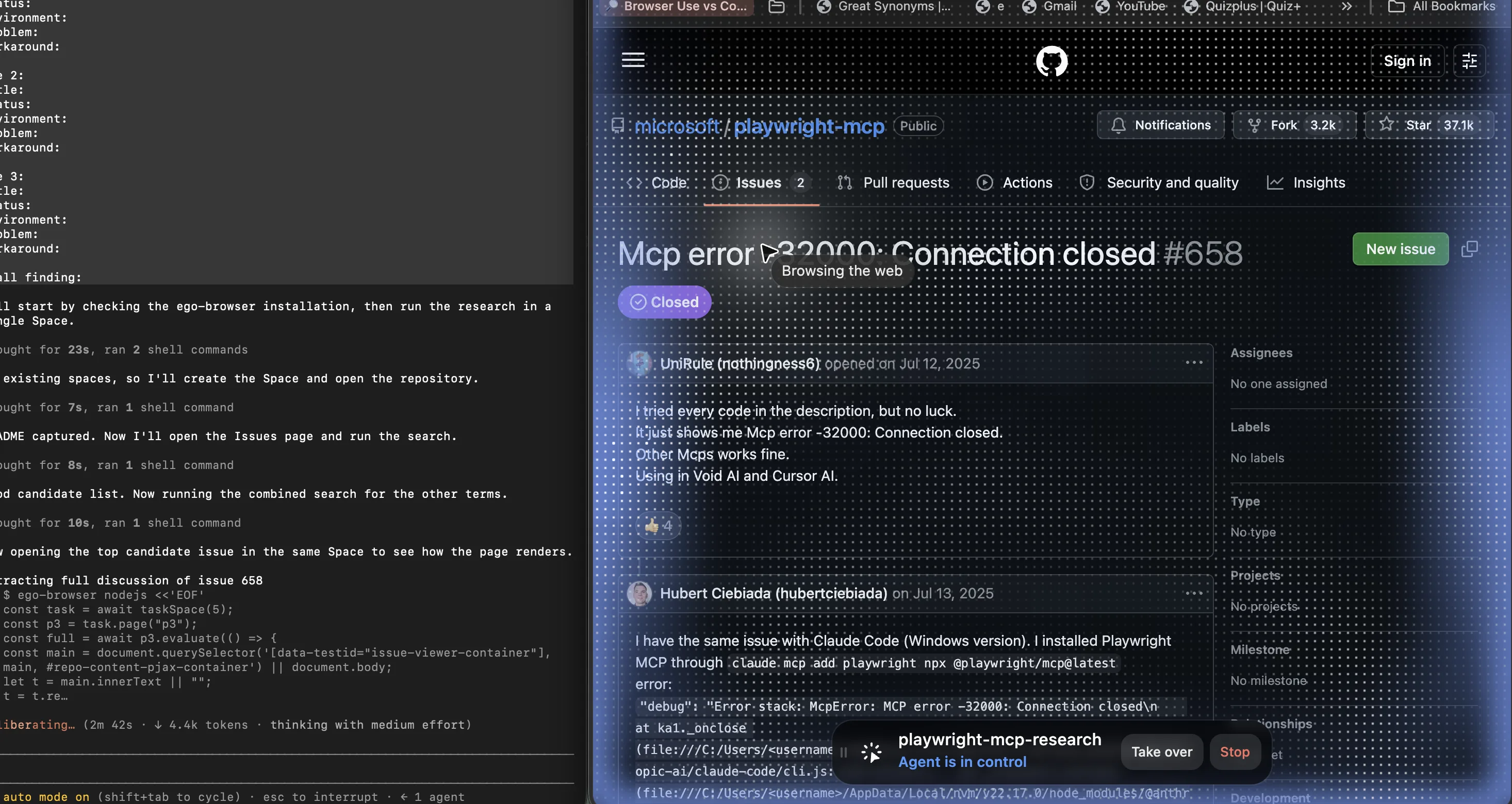
The server in that example is microsoft/playwright-mcp, which is where its tool list and known issues are tracked.
For the wider set of ways an agent can reach a browser inside Claude Code, see the five browser routes compared.
This is the layer ego(lite) occupies, and it is worth being precise about which product it is. It is not an MCP server and it does not register any tools: it is a browser built so that an agent works inside the browser that already has your logins, instead of a fresh automation profile next to it. The connection between the agent and that browser is a separate concern from the connection between the agent and its tools. Claude Code or Claude Desktop holds the MCP connection; ego-browser holds the browser session, and the sessions live in isolated Spaces so an agent's work does not collide with the window you are using. When a browser MCP server returns an empty page, a login redirect, or an element it cannot see, the fix is almost always on that side of the boundary rather than in the config you just verified.
If you have not picked a browser server yet, the browser MCP comparison for Claude Code ranks the current options by what each one can reach and what it costs.
MCP, a command-line tool, a browser extension, and a browser built for agents are four different layers, and choosing between them is a question about who owns the window rather than about which is more capable. The practical test is what the task needs: a server that can reach your authenticated sessions, at a token cost you can live with, in a window that stays yours. That last step is where the decision gets made, whatever the status line says.
The layer-by-layer trade-offs are broken down in MCP vs CLI and where browser extensions fit.
What you are granting when a server connects
Connecting a server is granting a capability, and the scope table from earlier doubles as a permission table. A user-scoped server is present in every project you open, including the ones you did not write. A project-scoped server is present for everyone who clones the repository. Neither fact is bad on its own, but both are easy to forget a month after setup.
Three habits cover most of the risk. Keep credentials in environment variables rather than in a committed file, and remember that a project-scoped entry travels. Install servers you are still evaluating at local scope, where removing them is a single command and nothing reaches version control. And when a server's access is broader than its job (a filesystem server pointed at your home directory to edit one folder, a browser server that can reach every signed-in account you have), narrow the grant before you narrow the config.
If you want to see what other servers expose before you grant anything, the official MCP servers repository lists the reference implementations and their scopes.
Server definitions also cost context once they connect; how to reduce MCP token usage covers that side of the trade-off.
The user interface reinforces the difference: a remote connector runs from the vendor's cloud with the network reach that implies, while a local server runs with your account's permissions on your machine. That is why the security question for a remote connector is who else can reach that endpoint, and the security question for a local server is what that process can touch.
FAQ
Can one MCP server be used by both Claude Code and Claude Desktop?
Yes, provided you configure each app separately. The two clients read different configuration, so adding a server in Claude Code has no effect on Desktop, and installing a desktop extension does not make the server available to Claude Code. A remote server is the cheapest one to keep in both places, since the same URL works for each and only the surrounding entry differs.
Where does the server actually run?
A local server is a process on your machine, started by the client, with your user account's permissions. A remote server over HTTP or the deprecated SSE transport is reached over the network, and inside Claude Desktop that reach comes from Claude's cloud rather than from your device. This is the single most useful distinction when a server works in one app and not the other.
Why does the server show as pending approval?
It came from a shared project file that you have not approved in this workspace yet. Pending approval is a configuration decision rather than a failed connection, so the client never contacted the server to produce it. Run the interactive client once in that directory, accept the workspace trust dialog, and approve the server; the status changes on the next check.
Is SSE still usable, or should I migrate?
The SSE transport is deprecated but still accepted. Where a server offers both endpoints, the HTTP transport is the better choice, and in recent versions the client prefers HTTP and falls back to SSE when the server does not accept it. Migration is a one-line change to the entry's type and URL rather than a reinstallation.
Why does the server work in my terminal but not in the app?
Almost always because the app does not inherit the environment your shell had. Your terminal has a PATH and a set of exported variables that a GUI application never sees, so a server launched with a bare command name resolves in one place and not the other. Use absolute paths for the command, and pass the variables the server needs through its environment block instead of relying on the surrounding shell.
How do I remove a server cleanly?
In Claude Code, remove it by name, which drops the entry from whichever scope holds it. In Desktop, uninstall the extension or delete the entry and restart, since the manual file is only read at startup. Removing from one place never removes from the other, which is worth remembering when a server you deleted in one app keeps showing up in the other.
Can I commit a project .mcp.json to the repository?
You can, and that is the point of project scope, but the file carries no credentials and every teammate still approves it once. Keep secret values in environment variables that the entry references, and treat the committed file as a list of server names and commands rather than as configuration a clone can trust on its own.
Why can't Claude Desktop see a server I added in Claude Code?
Because the two apps read different configuration. A server registered with the CLI lives in Claude Code's own scope files, and Desktop only reads its extensions and its Developer config. Add the server again on the Desktop side, or point both at the same remote URL so there is one definition to maintain.
Do I need to restart the app after editing a config file?
Claude Code reads and writes its server definitions through its own commands, so no manual restart is needed. Claude Desktop reads its manual config file at startup, so an edit made outside the app only takes effect after a restart.
What does needs authentication mean in the server list?
The server started and answered, but the caller it saw was not authorized. For a remote server this usually means the credential in the URL or headers did not arrive, or arrived empty after variable expansion. Open the server's configuration and confirm the expanded values before you change anything else.