Claude Code browser automation: 6 ways compared


The short answer: choose by the browser state and output your task needs. ego(lite) gives you and the agent separate Spaces, so it can run browser automation tasks without touching the tabs you are using. Claude for Chrome works in the Chrome you're using after extension setup. Playwright MCP is built for test drafting and headless CI. Chrome DevTools MCP exposes performance, network, and heap diagnostics. agent-browser favors compact CLI output and isolated sessions, with copied-in auth rather than live sessions.
A note on how this list was checked, so you know what kind of evidence you're reading: setup steps and current facts were verified for all five routes. For this 2026-08-30 refresh we directly ran two of them, ego-browser and Chrome DevTools MCP, against the same Hacker News page on 2026-08-25; Claude for Chrome, Playwright MCP, and agent-browser are assessed from their current official docs plus explicitly attributed case evidence.
Why ego(lite) appears first: we build ego(lite), so treat this as a disclosure. It leads because it is the only route here that pairs an imported login state with a Space of its own. That is a specific trade-off, not a claim that other routes cannot preserve login state or that every site accepts an imported session.
Each route below has a different pressure point: a paywall, a token bill, a shared window, or a login boundary. Knowing which one your task will hit first is what tells you which way fits. So this guide gives each way four lines: how it works, how to set it up, where it shines, and where it breaks. Then one table, then recommendations by need.
What actually separates the six ways?
Two axes sort all six. First: whose browser does the agent get? Your daily one (with your logins and your focus at stake), or a fresh automation browser (clean, parallel-friendly, and signed out of everything)? Second: how does Claude Code connect? Tool calls through MCP (zero code, but page snapshots flow through your context) or a CLI the agent drives with commands and scripts (code required, context stays lean).
Every route below is one cell of that grid, and the gaps between cells are where switching pressure comes from. Keep the two axes in mind and the six stop blurring together.
What the two connection styles return from the same page
To make the second axis concrete, here are two real runs against the same Hacker News page, minutes apart on the same day (rerun 2026-08-25). Be clear about what's being compared: these are different output requests, not the same task timed twice. The DevTools MCP call asks for a full accessibility snapshot of the page; the ego-browser script asks for exactly four fields. The point is what each style hands back to the model when you ask it the way its docs show.
Chrome DevTools MCP take_snapshot
# Chrome DevTools MCP (chrome-devtools-mcp 1.7.0), same page
await session.call_tool("take_snapshot", {})

Real output:
take_snapshot chars: 38554
## Latest page snapshot
uid=1_0 RootWebArea "Hacker News" url="https://news.ycombinator.com/"
  uid=1_1 link url="https://news.ycombinator.com/"
  uid=1_2 link "Hacker News" url="https://news.ycombinator.com/news"
    uid=1_3 StaticText "Hacker News"
  uid=1_4 link "new" url="https://news.ycombinator.com/newest"
    uid=1_5 StaticText "new"
  uid=1_6 StaticText " | "
  uid=1_7 link "past" url="https://news.ycombinator.com/front"
    uid=1_8 StaticText "past"
  uid=1_9 StaticText " | "
  uid=1_10 link "comments" url="https://news.ycombinator.com/newcomments"
    uid=1_11 StaticText "comments"
  uid=1_12 StaticText " | "
  uid=1_13 link "ask" url="https://news.ycombinator.com/ask"
...ego(lite) via ego-browser, same page
ego-browser nodejs <<'EOF'
const task = await useOrCreateTaskSpace('evidence-egobrowser-hn')
cliLog(JSON.stringify({ taskSpaceId: task.id }))

await openOrReuseTab('https://news.ycombinator.com/', { wait: true, timeout: 20 })
const result = await js(String.raw`
  (() => {
    const topStory = document.querySelector('.athing .titleline > a')?.innerText ?? null
    const points = document.querySelector('.subtext .score')?.innerText ?? null
    return { title: document.title, url: location.href, topStory, points }
  })()
`)
cliLog(JSON.stringify(result, null, 2))
EOF

Real output:
{"taskSpaceId":3}
{
  "title": "Hacker News",
  "url": "https://news.ycombinator.com/",
  "topStory": "iCloud+ Hide My Email addresses will remain on icloud.com",
  "points": "356 points"
}
38,554 characters versus about 140: that gap illustrates output scope, not a like-for-like cost or speed measurement. A full snapshot is the right request when the model needs to see the whole page to decide what to click; a scoped script is the right request when you already know which fields you want, and it keeps the payload that reaches the model small. Both runs are from 2026-08-25 on ego-browser 0.4.7.1; the ego(lite) heredoc uses the skill's preloaded helpers (useOrCreateTaskSpace, openOrReuseTab, js, cliLog), which is the API the CLI actually ships.
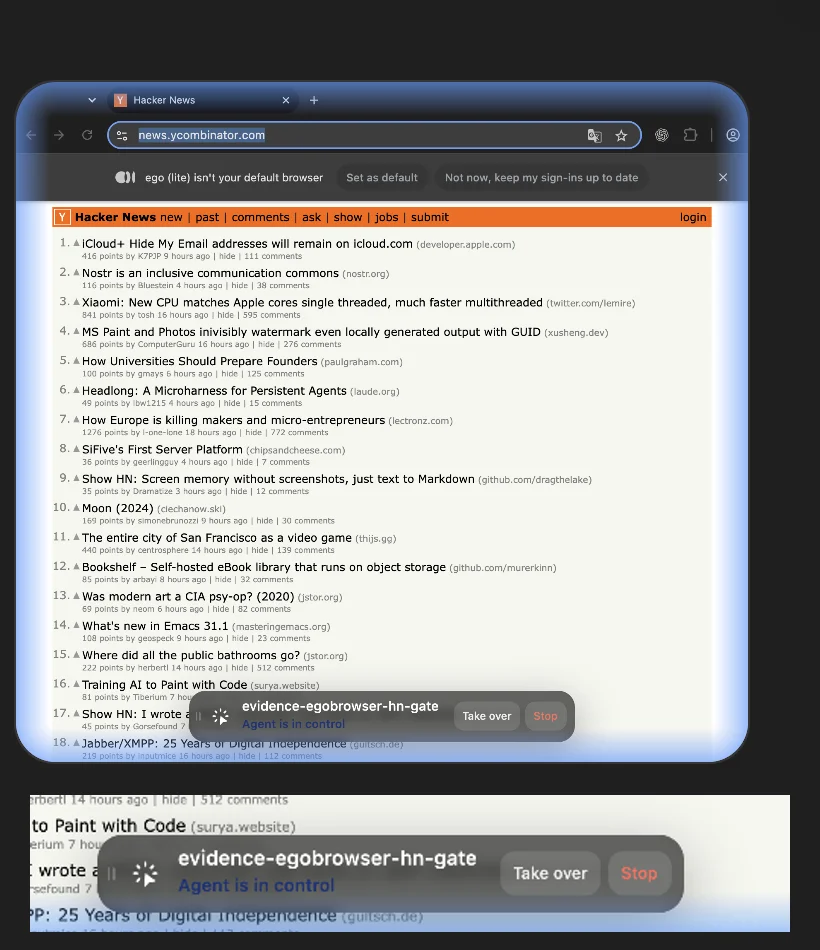
What about Claude Code and Cowork's built-in browsers?
One development since this list was written, so you don't wonder whether it replaces it: in July 2026, Anthropic added a Browser pane to the Claude Code desktop app (Cmd+Shift+B on a Mac). That pane is separate from the newer Cowork built-in browser described below; the Cowork browser is the focus of this update and is a distinct surface for handing off tasks.
Anthropic's newer Cowork browser is a related but distinct surface: its official announcement says the Cowork desktop app opens a browser in the side panel that can read pages, click, type, fill forms, and pull numbers while you keep working, with no extension to install. It is rolling out in beta on macOS, Windows, and Linux for Pro, Max, and Team plans; Enterprise admins can manage it in Organization settings. Cowork keeps your own tabs, bookmarks, and passwords out of the built-in browser.
Login state is more nuanced than "separate means signed out." Anthropic documents an optional, site-by-site login import from Chrome, Edge, or Firefox on macOS, and from Firefox on Windows and Linux; banking, email, and single sign-on sites are excluded unless you choose to include them. Set Settings → Cowork → Preferred browser to switch between Cowork's built-in browser and Claude in Chrome. The desktop app must be open and online for remote tasks; from the web without it, Claude in Chrome remains the browser route.
Way 1: ego(lite) via ego-browser
The usual way to give Claude Code a browser is to hand over a window you are already using, or to log the agent into a fresh one. Both have trade-offs. ego(lite) gives the agent its own Space with its own tabs, so background tasks never touch the window you are working in.
It occupies way 1 because it combines eligible imported session state with a separate Space. Under the hood, the ego-browser skill drives the browser over CDP, the same protocol ways 4 and 5 speak, pointed at a browser built to be driven instead of the one you're using.
Setup: download ego(lite), finish onboarding (the /ego-browser skill installs into your agent), then just tell your agent what you want. Or skip the manual route entirely: one command from the official repo installs the skill, and one prompt hands the whole setup to the agent you already run.
npx skills add citrolabs/ego-litePaste into your agent
Set up ego (lite) for me: https://github.com/citrolabs/ego-lite Read `skills/ego-browser/references/install.md` and follow the steps to install ego (lite).
Shines at: authorized daily tasks that need a persistent browser profile, with parallel work in a separate Space. In our published heredoc-versus-REPL benchmark, batching the tested workflows used 44% fewer execution rounds, 35.5% fewer tool calls, and 21.6% lower cost for that task set; those figures are workload-specific, not a universal Claude Code saving.
Breaks on: diagnosis and CI. No performance traces or debugging panels (way 4 keeps that job), no headless server mode (it's a desktop browser), and no autonomous navigation: your agent writes the steps.
Way 2: Claude for Chrome
Principle: Anthropic's extension moves Claude into the Chrome you're signed into; from Claude Code you attach it with claude --chrome (or /chrome in a session). Setup: install from the Chrome Web Store, sign in, done. It's available on all paid Claude plans, with one wrinkle worth knowing before you rely on it: the Claude Code integration needs a direct Anthropic plan (Pro, Max, Team, or Enterprise) with a /login session rather than an API key, and it isn't available through Bedrock or Vertex or in WSL.
Shines at: tasks inside accounts you are authorized to use (dashboards, mail, CRMs) once the extension is installed, you are signed in, and Claude Code is attached. Anthropic documents site-level pre-approvals and confirmation before irreversible actions; review those prompts rather than treating them as a substitute for your own approval policy.
Breaks on: price and possession. It requires a paid plan, serves only Claude, and works in the browser you're using; while it clicks, that window is occupied, and Anthropic's own guidance says to keep it away from financial transactions because prompt-injection defenses "aren't foolproof."
Way 3: Playwright MCP
Principle: Microsoft's MCP server snapshots pages as accessibility trees and executes Claude's chosen actions in a Playwright-managed browser. Setup:
claude mcp add playwright npx '@playwright/mcp@latest'Shines at: short exploratory sessions, test drafting, cross-browser checks (Firefox, WebKit, Edge), and headless CI. It is Apache-2.0 and officially maintained.
Breaks on: context use on complex pages and auth setup. In one published Salesforce-heavy case study, Playwright MCP runs used 89K-114K tokens, including a 114K single-page run. That is a workload-specific warning, not a normal per-run baseline. The default browser starts with none of your sessions; Playwright MCP can load storage state or a persistent user-data directory, but that state must be configured explicitly. If context use becomes the bottleneck, compare its own CLI with way 1.
Way 4: Chrome DevTools MCP
Principle: Google's MCP server wraps the DevTools protocol: performance traces with Core Web Vitals, heap snapshots, network inspection, emulation. With --autoConnect (Chrome 144+, remote debugging enabled, permission dialog) it attaches to the Chrome you're signed into. Setup:
claude mcp add chrome-devtools -- npx chrome-devtools-mcp@latest --autoConnectShines at: diagnosis. Questions such as why LCP is slow, where a memory leak appears, or how a page behaves on slow 3G are a better fit for DevTools' specialized diagnostics than for a functional browser test.
Breaks on: window sharing. Auto-connect puts the agent in your live browser, taking turns with you; great for pair-debugging, wrong for background tasks. Without auto-connect, it's another fresh-profile browser.
Way 5: agent-browser
Principle: Vercel Labs' native Rust CLI (Apache-2.0, ~41K stars): snapshot returns an accessibility tree with refs, then click @e2 style commands act on them; a daemon keeps the browser warm between commands. Setup: npm install -g agent-browser, then agent-browser install to fetch Chrome for Testing.
Shines at: stateless automation such as permitted public-page reads, batch screenshots, and CI-adjacent scripting, with sessions deliberately isolated from each other.
Breaks on: login state, still, though the story has moved since this list first ran. Sessions stay isolated by default; what's new is a set of import routes: --restore persists a session's own cookies, --profile copies your Chrome profile to a read-only temp snapshot, and an encrypted auth vault can hold credentials. All of them copy state in rather than share the live browser, so anything your real profile picks up after the copy isn't there, and cross-origin sign-in iframes (Apple ID, Google SSO) remain a tracked blocker in the repo's issues.
Way 6: Claude Cowork's built-in browser
Principle: Anthropic's announcement describes a browser built into the Cowork desktop app. When your task involves a website, a browser opens in Cowork's side panel, and Claude navigates, fills forms, and finishes the job. There is nothing to install; the browser is built into the desktop app and stays separate from your own browser and logins.
Setup: no extension or MCP server to add. The built-in browser is rolling out over the coming week to Pro, Max, and Team plans in the Claude desktop app on macOS, Windows, and Linux (in beta). On Enterprise plans, it is available now and admins can manage it in Organization settings → Cowork → Built-in browser. If you already use Claude in Chrome, it keeps working and stays your default; otherwise Claude uses the built-in browser. Switch anytime in Settings → Cowork → Preferred browser.
Shines at: handing web tasks to Claude while you keep working, with no setup. The built-in browser is separate from your own, so Claude never sees your tabs, bookmarks, or passwords. To stay signed in to your sites, you can bring your logins over site by site, from Chrome, Edge, or Firefox on macOS and from Firefox on Windows and Linux. Banking, email, and single sign-on sites are left out unless you choose to include them.
Breaks on: live sessions and remote use. The built-in browser is for handing web tasks to Claude while you keep working; Claude in Chrome is for the page you already have open, with the accounts you are already signed in to. The built-in browser lives in the desktop app. From the web or your phone, Claude can still drive it as long as your desktop app is open and online. On the web without the desktop app, Claude in Chrome remains the way to give Claude a browser. The built-in browser carries the same prompt injection risks as any AI agent that acts in a browser; it runs the same safeguards as Claude in Chrome.
How do the six compare side by side?
No unified benchmark has run all six through an identical task set. The token column therefore labels source-specific observations instead of ranking the routes with one score; the Salesforce figure remains a case study, not a general baseline.
| Way | Your logins | Your window stays yours | Token profile | Best fit |
|---|---|---|---|---|
| ego(lite) | Yes, inherited | Yes; agent works in its own Space | Out-of-process scripts; 44% fewer rounds, 21.6% lower cost in our benchmark | Logged-in tasks in a separate Space |
| Claude for Chrome | Yes, natively | No; it works in your Chrome | Lightest per-action payloads in the Feb 2026 three-tool test | Logged-in tasks in active Chrome |
| Playwright MCP | Not by default; storage state/profile opt-in | Yes; separate browser | Snapshot-heavy in one Salesforce case: 89K-114K | Cross-browser testing and headless CI |
| Chrome DevTools MCP | Yes, via auto-connect | No under auto-connect; yes otherwise (but then no logins) | Targeted responses; --slim trims it to 3 tools | Performance and network diagnosis |
| agent-browser | No live sessions; copy-in imports only | Yes; own browser | CLI-lean; snapshot filtering flags | Public-page scripts and batch capture |
Which way for which need?
Close by need, since that's how the question actually arrives. If context use is the bottleneck, compare CLI-style routes such as Playwright's own CLI, agent-browser, or ego-browser scripts, because they can return scoped output instead of full page snapshots.
Tasks behind an authorized login: Claude for Chrome if you already use a supported paid plan and accept live-window sharing; ego(lite) if you want the agent to work in its own Space and keep your window free. For parallel tasks while you work, separate Spaces keep browser state isolated and let many runs proceed at once, but they do not remove site, account, or MFA limits.
Debugging and performance: start with Chrome DevTools MCP when its trace, network, or memory tools answer the question. For official Playwright test infrastructure and repeatable headless CI, Playwright MCP is a strong default; verify the browser matrix and auth setup for your project.
A practical two-install setup is ego(lite) for authorized logged-in task work and DevTools MCP kept lean (--slim) for days when a trace is needed. That pairing covers the daily-task and diagnostic columns; headless CI still belongs with a test runner such as Playwright.
Download ego(lite) for Mac, or start from the browser MCP shortlist for Claude Code if you're set on the MCP route.
For a zero-install option inside the Claude desktop app, the Cowork built-in browser is the fastest way to hand a web task to Claude while you keep working. Choose Claude in Chrome when the page you need is already open in your browser with the accounts you are signed in to. Choose ego(lite) when you want a free full Chromium with tab groups, extensions, downloads, bookmarks, and incognito, not a panel inside an app.
How do you reuse an existing Chrome login session?
Reuse a login by sharing or importing a browser context that you are authorized to use, not by pasting cookies into a prompt. Claude for Chrome and Chrome DevTools MCP auto-connect can work in the live signed-in Chrome window; ego(lite) imports an authorized Chrome context into an isolated Space; Playwright and agent-browser use explicitly configured storage state or a copied profile. Each choice has a different privacy and freshness boundary.
- Choose live sharing or a copy. Live sharing keeps new login and 2FA state visible but occupies the window. A copied profile keeps your daily tabs private, but it can go stale and may not carry cross-origin sign-in iframes.
- Limit the account and data scope. Use a separate browser profile or Space for each account, and never put passwords, session cookies, or recovery codes in Claude's chat context. Give the agent only the pages and fields needed for the task.
- Stop at a fresh authentication decision. If the site asks for a password, MFA, device approval, CAPTCHA, or recovery action, pause and take over yourself. Do not ask an agent to defeat the challenge or keep retrying it.
Anthropic's Claude Code Chrome documentation describes the extension's permissioned connection. For a separate Space with inherited sessions, see ego(lite)'s authorized browser workflow; neither route makes a site's terms or privacy policy optional.
How do you reduce Claude Code browser token usage?
Reduce token usage by reducing what Claude must see and how often it must reason. Keep only the MCP servers needed for the task, prefer a filtered accessibility snapshot or a targeted DOM extraction over a full page dump, batch independent reads in one script, and return structured results. A shorter prompt is not enough if every click still sends a giant snapshot back to the model.
- Disable unused tools. MCP tool definitions consume context before the first action. Keep only the browser, filesystem, or project tools the current job needs, and start a fresh conversation when an old transcript is no longer useful.
- Ask for a bounded observation. Name the exact selector, row range, URL list, or fields. Playwright locators and ego-browser scripts can return a few values instead of an entire accessibility tree when you already know what to inspect.
- Separate discovery from execution. Use Claude to plan a small script, then let the browser runtime execute repeated clicks or reads. Return one JSON or CSV payload and ask for model reasoning only for ambiguous cases.
- Set a stop budget. Set a maximum number of pages, actions, retries, and tokens. Report partial progress when the limit is reached instead of letting a confused loop consume the rest of a usage window.
How can Claude Code control live DOM elements directly?
Give Claude a browser tool that exposes locators or an evaluated page function, then have it inspect the live DOM before acting. Use accessible roles and labels first, stable data attributes second, and a narrowly scoped DOM query only when the page has no reliable semantic hook. Confirm the target and expected state before clicking, typing, or editing; a class name alone is not a durable contract.
- Inspect before selecting. Read the current page, role, label, name, and disabled state. Do not invent a selector from a screenshot or from an earlier render.
- Act on one element at a time. Use a locator that resolves to the intended element, assert visibility or editability, then click or fill. For a contenteditable area, verify the resulting text after the edit rather than trusting that the keystrokes landed.
- Re-read after every state change. React and other dynamic apps can replace nodes after a click. Reacquire the locator, check the new state, and record a screenshot or text assertion when the change matters.
Playwright's locator guidance explains why role, text, and test-id locators are preferable to brittle CSS chains. DevTools MCP and ego-browser can expose a real page for inspection, but direct DOM access still runs with the account permissions and side effects of that page.
How do you automate repetitive browser workflows?
Turn a repetitive browser task into a bounded workflow with a clear input, a checkpoint after each record, and a human approval before an irreversible action. Claude Code can draft the steps and call an MCP server, CLI, or local browser runtime; the workflow should remain idempotent, observable, and easy to stop. Avoid an agent that is told to “keep going” without a page limit or success condition.
- Define the unit of work. Use one URL, invoice, form, or content item as a record. Keep a stable key and status such as pending, ready, needs_review, completed, or blocked.
- Verify before side effects. Before sending, paying, publishing, applying, or marking something complete, show the target, changed fields, and destination. Require an explicit human confirmation for actions that cannot be undone.
- Persist evidence and resume safely. Save the source URL, timestamp, screenshot or response, and result status. On restart, skip completed keys and send ambiguous records to review instead of repeating an external action.
For multiple Chrome profiles, keep profiles and credentials isolated and name the account scope in the run log. A separate ego(lite) Space is useful for parallel, reviewable tasks; it is not a license to automate a site beyond its terms or to send bulk outreach.
How should Claude Code handle anti-bot checks and verification?
Treat a Cloudflare page, CAPTCHA, rate limit, login challenge, or TikTok or LinkedIn warning as a stop signal, not an obstacle to defeat. Confirm that your use is authorized, record the visible state, reduce or end the run, and use an official API, export, licensed feed, or manual handoff when available. A real browser can pass a human check only when you complete the permitted step yourself; it does not guarantee access or prevent an account restriction.
- Do not evade controls. Do not rotate proxies or accounts, spoof fingerprints, replay cookies, solve CAPTCHA challenges programmatically, or increase concurrency to get around a denial.
- Classify the failure. Separate a temporary network error from a 401 or 403, a terms-based denial, an account warning, and a human-verification request. Retry only the transient class with bounded backoff.
- Keep a partial result honest. Label blocked or unverified rows and retain the timestamp and source. Never turn a challenge page into an empty success or claim that a list is exhaustive.
See Cloudflare's challenge-page documentation for the site-owner perspective. The correct automation response is a documented permission path or a stop, not a stealth technique.
What are the best Claude Code scraping and extraction practices?
Give Claude Code a bounded URL list, an explicit field schema, and a stop rule before asking it to scrape. Extract from the rendered state when a page is dynamic, distinguish an empty field from a field that was not displayed, record pagination and visibility limits, and return source-linked JSON or CSV. Use only pages and data you are authorized to collect; public visibility is not blanket permission to automate.
- Define completeness. Say whether you need the visible slice, every page in a known pagination range, or a complete API dataset. A virtualized list or lazy-loaded table is not complete just because the first screen looks full.
- Preserve provenance. Store source_url, checked_at, access_status, query or filter state, and limitations with every row. Do not infer a name, email, role, price, or metric that the page did not show.
- Choose the right route. Use Playwright MCP for cross-browser testable flows, agent-browser or an API for bounded public-page scripts, and ego(lite) when an authorized browser session is the key constraint. No route bypasses a login wall or site policy.
How can Claude Code automate browser testing and QA?
Use Playwright MCP or Playwright's test runner for repeatable browser QA, and use Chrome DevTools MCP when the question is performance, network behavior, or memory. Have Claude write a small test with explicit setup, assertions, screenshots or traces on failure, and a cleanup step; then run it in CI with deterministic test data. Natural-language exploration is useful for finding cases, but it is not a substitute for an assertion that can fail a pull request.
- Separate discovery from the gate. Ask Claude to explore the flow and suggest cases, then encode the accepted behavior as a locator, assertion, API fixture, or visual baseline. Keep the pass/fail rule in code or a reviewable test artifact.
- Test the states users actually hit. Cover loading, empty, validation-error, permission, mobile, slow-network, and email-rendering states—not only the happy path. Redact credentials and personal data from traces and screenshots.
- Make failures diagnosable. Capture the URL, browser and model versions, console or network errors, and a trace or screenshot only when the test fails. Retry flaky infrastructure separately from a real assertion failure.
Playwright documents test retries and trace workflows; use retries to diagnose transient infrastructure, not to hide an unstable assertion. For Core Web Vitals or network questions, keep the DevTools MCP route because its diagnostic tools answer a different question than Playwright's functional assertions.
How does Claude Code fit into a developer workflow?
Use Claude Code's browser access as a verification loop around development: research the official docs, reproduce a page state, make the smallest code change, run the browser test, and attach the evidence to the change. Keep project context in files and scripts that can be reviewed, not only in a long chat. Browser access should inform and verify code; it should not silently publish, deploy, or change production data.
- Research from primary documentation. Give the agent the official API or framework docs and ask it to quote the relevant version, endpoint, or constraint before writing code. Treat forum snippets as leads, not authority.
- Keep credentials and tokens out of context. Use environment variables, secret stores, or a permissioned browser context. Never paste a GitHub token, API secret, or recovery code into a browser prompt or commit it to a fixture.
- Make the browser run a checkable artifact. Save the command, browser version, target URL, expected result, and redacted screenshot or trace. A reviewer should be able to rerun the check without guessing what the agent saw.
This pattern works for a Roblox or other platform API lookup, a documentation check before writing code, a PR smoke test, or a marketing-email render review. The integration point is the evidence handoff: browser output becomes an input to a reviewed code change, not an unbounded autonomous action.
FAQ
What's the fastest way to give Claude Code a browser right now?
If you're in the Claude Code desktop app, press Cmd+Shift+B: its built-in Browser pane avoids a separate MCP install for a public or separately signed-in page. Outside the desktop app, claude mcp add playwright npx '@playwright/mcp@latest' is a direct setup path. Whether either is the right long-term route depends on which limit above your task reaches first.
Does Claude Cowork use my Chrome login?
Not by default. Anthropic describes Cowork's built-in browser as separate from your own tabs, bookmarks, passwords, and existing sign-ins. It does offer an optional site-by-site login import from supported browsers, with sensitive categories such as banking, email, and single sign-on excluded unless you explicitly include them. For the exact page and session already open in Chrome, use Claude in Chrome; for a separate local browser with inherited sessions, use ego(lite)'s imported profile and isolated Space.
Can Claude Code use my logged-in browser without the paid extension?
Usually, with setup. Chrome DevTools MCP's auto-connect attaches Claude to your signed-in Chrome (sharing your window), and ego(lite) is itself a browser, so there is no extension to install, no pairing to maintain, and no connection to drop, though it can still use eligible imported profile state. The extension keeps setup and browser control inside Claude and your active Chrome. In every case, session expiration, MFA, site policy, and account permissions still apply.
Do I have to pick just one way?
No. These routes can be installed independently, but local configuration, browser ownership, ports, and account permissions still determine whether they coexist safely. The practical cost of stacking MCP servers is context: every enabled server can load tool schemas into Claude's window, so keep unused servers disabled and enable only what the task needs.
Still deciding between a login-aware desktop browser and a CI-first MCP route? See ego(lite) vs Playwright MCP, or download ego(lite) above and run the Hacker News heredoc from this page as your first test.
What is the Claude Cowork built-in browser?
The Cowork built-in browser is a browser built into the Claude desktop app that opens in a side panel when your task involves a website. Claude can navigate, fill forms, and finish the job without any separate installation (announcement). It is rolling out to Pro, Max, and Team plans on macOS, Windows, and Linux in beta, and is available now on Enterprise plans with admin controls.
How is the Cowork built-in browser different from Claude in Chrome?
The built-in browser is for handing web tasks to Claude while you keep working, and it stays separate from your own browser and logins. Claude in Chrome is for the page you already have open, with the accounts you are already signed in to (announcement). If you already use Claude in Chrome, it keeps working and stays your default; otherwise Claude uses the built-in browser, and you can switch anytime in Settings → Cowork → Preferred browser.
Does the Cowork built-in browser use my existing logins?
Not by default. The built-in browser is separate from your own, so Claude never sees your tabs, bookmarks, or passwords (announcement). You can bring your logins over site by site from Chrome, Edge, or Firefox on macOS and from Firefox on Windows and Linux, with banking, email, and single sign-on sites left out unless you choose to include them.