Codex Chrome extension: setup, permissions, and fixes

The Codex Chrome extension is not a separate extension published under the Codex name. OpenAI's current setup installs the ChatGPT browser extension from the desktop app, then lets a ChatGPT Work or Codex task select that connected browser with an @ mention. The extension works in the browser profile where you installed it, including tabs and sites you explicitly allow.
The conclusion up front: these three paths expose different trade-offs among agent flexibility, login state, and window ownership. The built-in browser starts from its own profile rather than the window you are already using, while the extension acts with your logins but only inside the profile and tabs you authorize. When you would rather not have the agent reach the page across a bridge that must be installed, authorized per site, and kept connected, ego(lite) is where that gap closes.
This guide starts with the extension setup that matches the search, then separates it from the built-in browser and MCP routes. The built-in browser uses its own profile, the extension acts in a connected browser profile, and an MCP server brings its own browser and permission model.
Here's each path with what it can and can't do, straight from the docs. If you only remember one thing, make it the profile boundary: the built-in browser is separate from your regular browser, while the extension acts in the profile and tabs you authorize. Many Codex browser failures come from asking one path to behave like the other.
How do you install the Codex Chrome extension?
Install it from the ChatGPT desktop app so the app, native connection, browser extension, and profile are paired through one supported flow. Open Settings > Computer use, expand More browsers if needed, choose Google Chrome, and follow the prompt. Select Install to open the browser's extension store, review the requested permissions, install, then return to Computer use and confirm the browser now shows Manage.
OpenAI's computer-use guide shows the desktop permission surface where connected browsers appear. Review both the desktop permission and the browser extension's own site access; one does not replace the other.
- Update the ChatGPT desktop app before starting; update every installed desktop copy if you have more than one.
- Install the extension in the exact browser profile Codex should use, then reopen ChatGPT from the browser toolbar to confirm the side chat loads.
- Return to Settings > Computer use, confirm Manage appears, and turn on the browser toggle so it appears in the @ mention menu.
- Start a new ChatGPT Work or Codex chat, mention @Chrome, and begin with a read-only request on a trusted site.
| Browser | Extension control | Side chat |
|---|---|---|
| Chrome | Supported | Supported |
| Edge | Supported | Supported |
| Brave | Supported | Supported |
| Vivaldi | Supported | Supported |
| Opera | Supported from the desktop app | Not available |
Path 1: The built-in browser (@Browser)
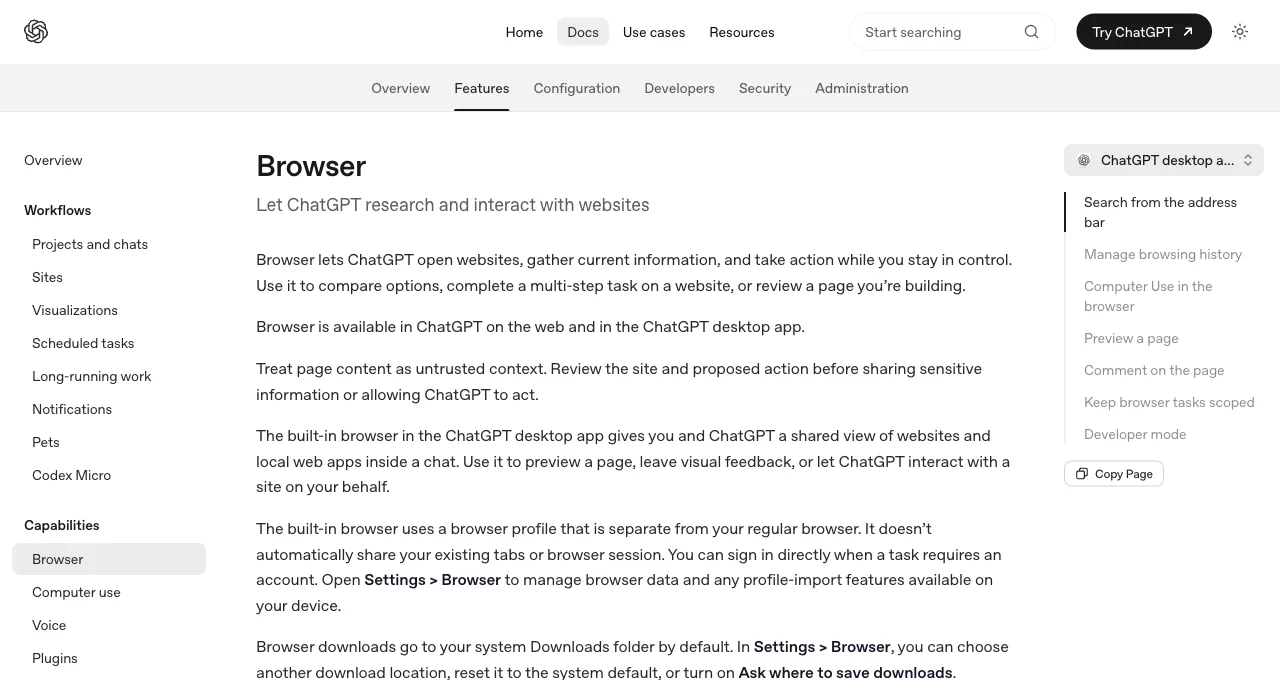
What it is: a browser embedded in the ChatGPT desktop app (and web) giving you and the model "a shared view of websites and local web apps inside a chat." Enable it from the Plugins tab, invoke it with @Browser or Cmd+Shift+B, and Computer Use lets Codex "open pages, click, type, inspect rendered state, take screenshots" against what you're both looking at.
Its developer story is better than most people expect: it previews local dev servers, supports visual annotations on page elements (the Adjust option gives granular style feedback), and a Developer mode grants "controlled access to the Chrome DevTools Protocol" for console, network, and DOM inspection, gated behind explicit approval because CDP "can expose sensitive browser internals."
Its boundaries, per the docs: it runs "a browser profile that is separate from your regular browser," so none of your sessions exist in it; it "can't automate file uploads"; and it "isn't available in Codex CLI or the Codex IDE extension," which surprises CLI-first developers most. Think of it as the demo-and-preview surface, not the task surface.
How does the Codex browser extension work?
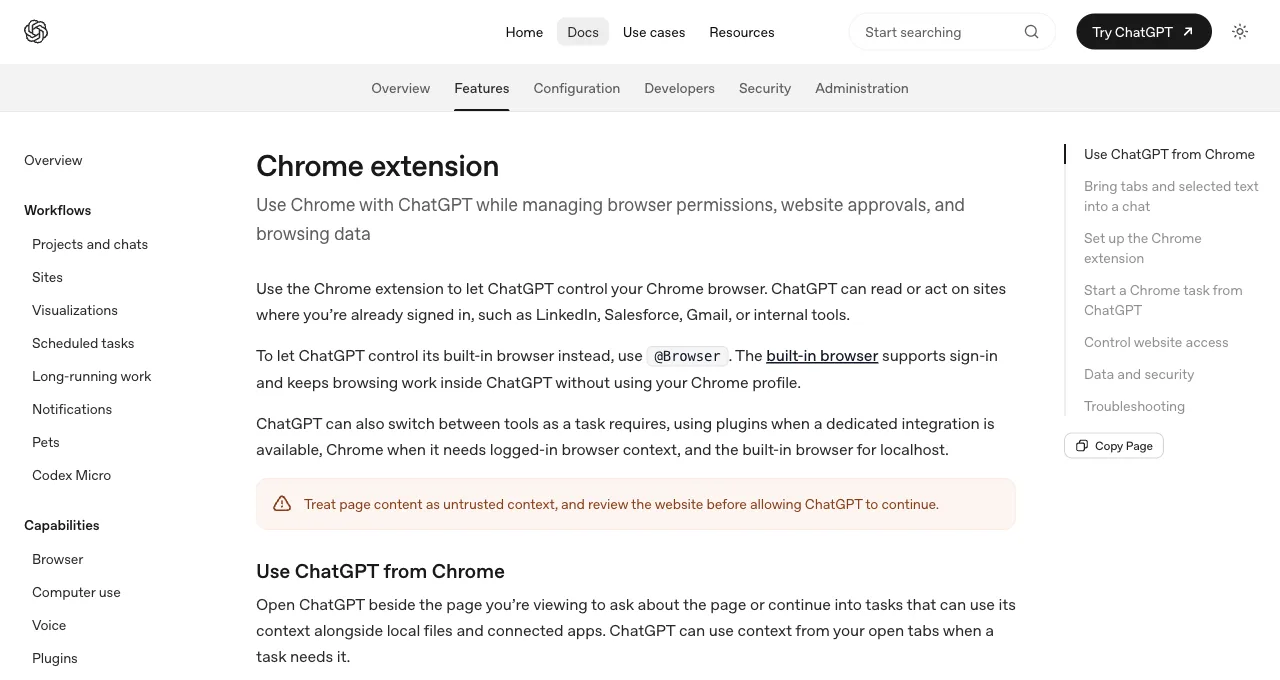
What it is: the browser-extension route into your actual profile. Install it from the desktop app, start a ChatGPT Work or Codex chat, and select the connected browser with an @ mention. Codex can then act on sites "where you're already signed in, such as LinkedIn, Salesforce, Gmail, or internal tools," and you can mention an open tab to give that page as context.
The permission model is host-based: OpenAI asks before the first interaction with a new website, and you can allow access once or persist it for that site. The documentation says to treat webpage content, selected text, and video transcripts as untrusted context. Review the site and requested action before approving it. The extension now supports Chrome, Edge, Brave, Opera, and Vivaldi; Opera lacks the side chat but can still be selected from the desktop app.
The practical division is profile state: @Browser opens the integrated browser, while @Chrome selects the installed extension in the Chrome profile you connected. Full CDP developer access is a separate elevated-risk setting and requires explicit approval before Codex inspects a site.
Path 3: MCP servers
What it is: Codex speaks MCP, so any browser server plugs in with one command:
codex mcp add playwright -- npx "@playwright/mcp@latest"
codex mcp add chrome-devtools -- npx chrome-devtools-mcp@latest
This is the extensible path, and it inherits each server's profile and permission model: Playwright MCP brings cross-browser automation and the snapshot-context trade-off; Chrome DevTools MCP brings performance traces and, via auto-connect, your signed-in Chrome with a shared window; Browser MCP brings extension-style takeover as a protocol citizen.
Everything in our Claude Code browser MCP scorecard transfers here unchanged, because these are the same servers behind a different client.
What the MCP path uniquely offers Codex users: an exit from single-vendor design decisions. What it doesn't offer: any single server that has your logins, an independent window, and lean tokens at once. That triple is the gap the comparison table below makes visible.
How do the three paths compare?
Three dimensions decide daily use; the fourth row is the one none of the paths fills.
| Path | Your logins | Window ownership | Extensibility |
|---|---|---|---|
| @Browser | No; separate profile by design | Shared view in the chat; fine for previews | Fixed feature set + CDP dev mode |
| Browser extension | Yes; the connected profile's sessions | Your connected browser; background tabs supported | OpenAI-defined; five documented browsers |
| MCP | Server-dependent; usually no | Server-dependent | Open; any server |
| ego(lite), external | Explicitly provisioned browser state | Its own Space; separate when configured, concurrency limited | Any shell-capable agent, not just Codex |
That last row is the external-browser option: ego(lite) runs agent work in a Space that never touches the tabs you are using.
One data point behind that row: on Real-World Bench, 31 tasks against live production sites with the same model (gpt-5.6-sol) and judge, run 2026-08-19 (a CourtListener litigation dossier assembled from federal dockets, the cheapest Friday-out-Sunday-back Google Flights combo within eight weeks), ego(lite) finished 93.5% of 31 tasks perfectly, the best result of the five tools measured. That result describes this benchmark configuration and task set, not every browser workload. The full task set and judging code are on GitHub.
In our separate heredoc-vs-REPL benchmark, whole-script execution finished the same tasks in 44% fewer execution rounds and 35.5% fewer tool calls, at 21.6% lower cost than command-at-a-time execution. Those figures are from that recorded workflow, not a universal savings guarantee. What ego(lite) lacks against the three official paths: @Browser's in-chat shared view and annotation flow, and the extension's simpler setup path.
The lean-tokens claim is a comparison, not a detour into Path 3. Here's the targeted extraction ego(lite) returns, from a recorded session against Hacker News:
ego-browser nodejs <<'EOF'
const task = await egoBrowser.newTaskSpace('evidence-egobrowser-hn')
console.log({ taskSpaceId: task.id })

await task.page.goto('https://news.ycombinator.com/', { waitUntil: 'load', timeout: 20000 })
const title = await task.page.title()
const topStory = await task.page.locator('.athing .titleline > a').first().innerText()
const points = await task.page.locator('.subtext .score').first().innerText().catch(() => null)
console.log({ title, url: task.page.url(), topStory, points })
EOF

# real output
{
  "taskSpaceId": 13
}
{
  "title": "Hacker News",
  "url": "https://news.ycombinator.com/",
  "topStory": "Qwen 3.8 27B",
  "points": "412 points"
}
About 150 characters come back to the agent. For the same page, a take_snapshot we measured via Chrome DevTools MCP (a different server, but the same snapshot-per-action design Playwright MCP uses) ran 38,285 characters. That's the token gap the table's last row is scoring.
Which path for which purpose?
By what you're doing, since that's how the choice arrives. Verifying code you're writing (previews, visual checks, style feedback): @Browser, which was built for exactly this shared-view loop, CDP dev mode included.
Occasional tasks in your accounts with a one-time extension setup: select the connected browser with an @ mention. Testing infrastructure, custom browser servers, or debugging depth outside the integrated workflow point to MCP.
Daily logged-in tasks that should be separated from your everyday browser: ego(lite), where agents inherit your real logins and run in their own Space while you keep using your window. Parallel work remains subject to account, site, and machine limits.
One day, all four, to show they compose rather than compete: morning, @Browser previews the branch you're shipping and annotates the spacing bug; midday, Playwright MCP runs the cross-browser check on the fix.
Afternoon, a configured external browser pulls the week's numbers from three authorized dashboards in separate Spaces while you review a PR; evening, @Chrome files the expense report in your accounting portal because it was one task and the extension was already there. Each action still needs the account permission and human review its risk warrants.
See ego(lite) vs the Codex browser in detail, or download ego(lite) for Mac, free.
How do you troubleshoot Codex browser-control failures?
Start by identifying the surface that failed, then reduce the task to one page and one action. A built-in Browser failure, a Chrome extension failure, and an MCP timeout have different owners and logs; reinstalling everything at once usually hides the cause. Capture the exact error, Codex surface, operating system, browser version, URL, and whether the action needed a login or a file upload.
- Confirm the surface and prerequisites. Use @Browser only in a surface that exposes the integrated browser. Use @Chrome only after the desktop app's Computer use settings show Manage for the active browser profile and the intended site is allowed. Use MCP from a client that supports the server and check that the server process starts outside Codex.
- Test a public, static page first. If a public page works but an internal page fails, the likely boundary is authentication, enterprise policy, network access, or site permission—not the click itself. If every page fails, check the local process, extension status, and client logs before changing prompts.
- Separate transient errors from permission errors. Retry a startup race or a temporary network timeout once with a bounded delay. Do not loop on a 401, 403, blocked domain, CAPTCHA, missing approval, or an account warning. Those responses require a new permission, a human handoff, or a different supported route.
- Check the final state, not the model's narration. Ask for the resulting URL, visible confirmation, downloaded file name, or other verifiable artifact. A response that says a form was submitted is not evidence that the server accepted it.
For a Chrome-control runtime or RPC error on Windows, keep the diagnosis narrow: update the Codex app and extension from trusted sources, restart the native host, verify the extension is enabled in the active profile, and reproduce with a harmless public page. Never disable Defender or bypass a trust check merely to make browser control start; an untrusted runtime can expose the whole profile.
How do you authenticate Codex on a remote or headless server?
Treat remote Codex authentication as a choice between an interactive browser login, an API key, or an approved enterprise identity flow. A headless machine cannot complete a loopback OAuth callback by magic: authenticate on a trusted device, use the documented remote connection or device flow when available, or provide a scoped secret through the host's secret manager. Do not copy a browser cookie, refresh token, or auth file into an untrusted server.
- Interactive CLI login. Run the supported Codex login command on the machine where the callback can open. For a remote shell, use the documented handoff or port-forwarding method for that environment and verify the redirect host before approving it.
- API authentication. Use an API key only where the account and organization policy permit it. Inject it as a runtime secret, restrict its project and spend, and keep it out of shell history, source control, prompts, screenshots, and task output.
- MCP OAuth. For a remote MCP server, configure the server URL and use codex mcp login <server-name> when the server advertises OAuth. Register the exact callback required by the provider; a successful MCP connection does not grant browser access beyond that server's tools.
If OAuth loops on a hosted IDE or Replit-style container, inspect whether localhost is reachable from the browser that performed login, whether the callback port is forwarded, and whether the provider rejects the redirect URI. Fix that topology or use an approved device/API flow; do not search for or export a refresh token from a browser profile.
How do Codex usage limits and browser token costs work?
Codex browser work consumes the limits and billing rules of the surface and model that actually runs it; there is no universal browser-token price that applies to every plan. A long computer-use trace, repeated screenshot, or large MCP snapshot can consume substantially more context than a short DOM extraction. Check the current plan's usage page and your organization's spend controls instead of inferring a quota from a single task.
- Budget before execution. Set a maximum action count, time limit, and spend alert for recurring jobs. Break a broad research request into bounded tasks so one loop cannot consume the whole allowance.
- Reduce observation size. Prefer a named locator, table slice, or API response over a full screenshot or accessibility snapshot. Keep the page state in the browser and return only the fields the next step needs.
- Use deterministic steps for deterministic work. A Playwright or shell script can handle repeated navigation and parsing, while Codex handles ambiguous decisions or recovery. This usually costs less than asking a model to narrate every click.
- Measure accepted results. Track input and output tokens, browser time, retries, failed actions, and manual repair per accepted row or completed workflow. A run that hits a rate limit or needs a human redo is not a low-cost success.
If a normal prompt suddenly consumes far more quota, inspect model selection, context length, attached traces, MCP snapshots, retries, and parallel jobs. Stop the queue first, then compare a minimal reproduction with the original run; rotating keys or opening extra accounts is not a reliable fix for a workload that is too large.
Is Codex browser and computer use safe on a main machine?
It is safer when treated as a privileged assistant with a narrow profile, explicit approvals, and reversible tasks—not as a trusted user. Browser pages are untrusted input and can contain prompt injection. A main machine can expose cookies, files, messaging accounts, and payment surfaces, so use a separate OS profile or browser profile, least-privilege credentials, and human approval for external side effects whenever the workflow allows it.
- Limit what the agent can reach. Use separate browser profiles or Spaces, allow only the domains and tabs needed, and avoid mixing personal email, password managers, admin consoles, and payment accounts in one run.
- Require approval for consequential actions. Pause before sending messages, changing permissions, purchasing, deleting, publishing, or submitting a form with legal or financial impact.
- Protect evidence and secrets. Review where screenshots, DOM snapshots, prompts, model requests, downloads, and logs are stored. Redact secrets before sharing a trace and set retention limits that match your policy.
Isolation reduces blast radius but does not make an agent injection-proof. A VPN, local model, password manager, or local browser does not by itself prevent a malicious page from influencing the model or an approved tool from performing a harmful action. Test the workflow with untrusted content and keep a kill switch and credential-revocation path outside the agent.
What enterprise network and anti-bot restrictions affect Codex?
Enterprise proxies, TLS inspection, browser policy, blocked domains, rate limits, and anti-bot challenges can all stop Codex even when a human can open the page. Diagnose these as access and authorization boundaries. Do not disable corporate security controls, spoof a fingerprint, rotate identities, replay cookies, or automate CAPTCHA solving to force a result.
- Check policy and network paths. Ask the administrator whether the domain, WebSocket, native host, MCP endpoint, or CDP port is permitted. Compare the same URL from the approved browser and the Codex surface without exposing credentials.
- Classify the response. A certificate or proxy error belongs to the network owner; a blocked-domain message belongs to policy; a 401 or 403 belongs to the site or account; a CAPTCHA or challenge is a stop signal unless the site offers an approved human path.
- Choose a compliant fallback. Use an official API, export, data partnership, or manual review. For public research, use a supported signed-out route and respect robots.txt, terms, and rate limits.
If Discord, LinkedIn, or another service warns about automation, stop the workflow and review its rules and account status. A browser agent cannot guarantee that an account will not be restricted, and a technically successful click is not permission to send unsolicited messages or scrape protected data.
How do you connect Codex to DevTools and MCP browser servers?
Use the MCP route when Codex needs a browser server that the built-in Browser or Chrome extension does not provide. Add one server, start with its narrowest tools, inspect the server list, and authenticate only when required. Chrome DevTools MCP is suited to debugging and performance inspection; Playwright MCP is suited to cross-browser actions and assertions; neither automatically inherits the same profile or permission model as @Chrome.
codex mcp add chrome-devtools -- npx chrome-devtools-mcp@latest
codex mcp add playwright -- npx "@playwright/mcp@latest"
codex mcp list
codex mcp login <server-name>
For a local server, verify the command and working directory before adding it. For a remote server, verify the HTTPS endpoint, OAuth issuer, scopes, and callback URL. Keep secrets in environment variables or the configured secret source; do not paste bearer tokens into a TOML file that is committed to a repository.
- When a DevTools server times out. Check that the browser is running with the expected debugging connection, that the port is reachable only from the intended host, and that another process is not holding the profile. A CDP endpoint is sensitive browser access, not a public service.
- When an MCP server is too expensive. Disable unused tools, request a focused locator or extraction, and prefer a deterministic CLI for repeated tasks. Keep only the server needed for the current workflow in context.
Which Codex browser extensions and environments are compatible?
Compatibility depends on the path and current desktop integration. The built-in Browser belongs to supported ChatGPT app surfaces. The browser extension currently supports Chrome, Edge, Brave, Opera, and Vivaldi, while Opera has no side chat. Codex CLI and the IDE extension do not expose the integrated browser feature; external MCP tools have their own support and permission contracts.
- Chrome extension missing or connected but idle. Confirm the desktop component and Web Store extension are installed from the official sources, the active profile is the one you authorized, the extension is enabled on the current tab, and the site has not been blocked by policy. Reopen the tab after changing permissions.
- Browser or PDF viewer UI is inaccessible. Treat extension pages, browser settings, privileged chrome:// URLs, and embedded PDF viewers as separate surfaces. Use an exported file, an accessible webpage, or a supported MCP/CLI workflow when the integration does not expose that UI.
- Windows or Linux differs from macOS. Check the current Codex support matrix, sandbox and permission requirements, native-host installation, and OS security policy. Do not assume that a macOS command, path, or browser profile works unchanged on Windows, WSL, a container, or a VPS.
When the requirement is a persistent signed-in browser independent of Codex's window, use ego(lite) and keep Codex as the planning or review layer. It is itself the browser, so there is no extension to install per profile, no per-site authorization to grant again, and no connection to keep alive or find idle.
FAQ
Why can't Codex CLI use the built-in browser?
The built-in browser lives in the ChatGPT app surfaces; OpenAI's docs state it "isn't available in Codex CLI or the Codex IDE extension." CLI users wanting browser hands can use the MCP path, or ego(lite), where any coding CLI agent connects through the open-source ego-browser shell without an SDK.
What's the Cloud browser I've seen mentioned?
A fourth, narrower thing: a remotely-hosted browser for ChatGPT Work on the web that "supports public, signed-out websites" only, with no logins, local tabs, or extensions, and plan-dependent availability. Useful for public research from the web app; not a path to your accounts.
Can I use Playwright MCP and the extension together?
Yes; they occupy different slots (MCP config vs Chrome extension) and don't conflict. A common Codex setup is exactly that pair: MCP for testing work, extension for account tasks, with the usual caution about how many MCP tool schemas you keep loaded.
How do I enable the built-in browser's Developer mode?
Settings, then Browser, then Enable full CDP access, with an explicit approval step because CDP "can expose sensitive browser internals." Admins can block it org-wide with browser_use_full_cdp_access = false in requirements.toml. Once on, Codex can profile JavaScript and inspect console, network, and DOM in the built-in browser.
What does codex chrome mcp mean when people search it?
Usually one of two setups mashed into one phrase: adding Chrome DevTools MCP to Codex (codex mcp add chrome-devtools -- npx chrome-devtools-mcp@latest), or using the ChatGPT browser extension from a Codex task. The extension is not an MCP server. Use DevTools MCP for a configurable debugging server; use the extension when Codex should act in the browser profile you connected through the desktop app.
Is any of this available without a paid plan?
The extension and built-in browser ride your ChatGPT plan and its usage limits. MCP server software may be free to install, but the model, hosting, and browser provider can still incur costs. With ego(lite), pages reach the agent as accessibility-tree snapshots rather than raw HTML, so tasks tend to use fewer tokens overall; the model and Codex access you use with it remain subject to their own plans, limits, and provider terms.