OpenClaw browser automation: control, relay, and profiles

The short version of the whole article, first: the key decision is which browser and session you are willing to expose. OpenClaw's options answer "whose browser is this" differently. Start with the managed profile for public work; attach to your Chrome only while you're sitting there; use the extension relay when a task specifically needs an eligible Chrome tab; move recurring logged-in work to a separately provisioned browser.
OpenClaw users asking "how do I let it control a browser" usually discover the answer is plural: the docs ship three distinct browser profiles, a remote-CDP path, and a design philosophy about which to use when.
That's more complete than most agent ecosystems, and it still leaves one option undocumented: OpenClaw commanding an external browser that carries your logins without being your Chrome.
What changed in OpenClaw 2.0 browser automation?
OpenClaw 2.0 is v2026.8.1, and the browser change is part of a larger runtime rebuild rather than a new selector trick. The official release notes describe signed-in sessions through an isolated managed profile or the exact Chrome tabs you choose to share, local cookie import on macOS or allowlisted sync to a remote managed browser, and cancellation and timeouts that stay attached to the tab, page state, and owning machine.
The operational upgrade matters as much as the feature list. OpenClaw now puts browser work beside conversations, approvals, files, and live work in the rebuilt Control UI; browser setup and permissions are easier to inspect. The same release also moves sessions and transcripts into SQLite, so the official notes warn you to make a verified backup before upgrading or downgrading. A browser upgrade that loses conversation state is not a successful automation upgrade.
For browser selection, the new release does not erase the four-way choice in this guide. Use the managed profile for isolation, a deliberately shared Chrome tab when a person is present, the extension relay for a scoped unattended tab, and an external browser such as ego(lite) when you want OpenClaw's agent to work in a separately provisioned local session. OpenClaw 2.0 makes each boundary more visible; it does not turn a cloud or shared profile into your personal browser automatically.
OpenClaw browser automation quick start
For a first run, use the bundled openclaw profile. It is a separate Chromium-family profile controlled by the Gateway, so it gives an agent a clean browser without borrowing your everyday Chrome session. The official docs recommend checking readiness before opening a page: doctor, status, start, open, then snapshot.
openclaw browser --browser-profile openclaw doctor
openclaw browser --browser-profile openclaw status
openclaw browser --browser-profile openclaw start
openclaw browser --browser-profile openclaw open https://example.com
openclaw browser --browser-profile openclaw snapshot
If the command or tool is missing, check both sides of the feature gate: the bundled browser plugin must be allowed/enabled, and the agent tool profile must expose browser. A coding profile includes web search and web fetch but not the full browser tool; add alsoAllow: ["browser"] at the profile or agent stage, then restart the Gateway after browser configuration changes.
Use the managed profile's browser tool for snapshots and actions, and keep the same tab handle through a workflow. The bundled browser-automation skill recommends checking tabs, labeling task tabs, snapshotting before an action, snapshotting again after UI changes, recovering a stale ref once, and reporting login, 2FA, CAPTCHA, camera, or microphone blockers for a person to handle.
OpenClaw browser troubleshooting: launch, files, and disconnects
When OpenClaw replies in chat but cannot open a browser or create a file, check the execution path rather than changing models first. A WhatsApp or Telegram reply only proves that the messaging channel is working; it does not prove that the Gateway, browser plugin, agent tool profile, and host filesystem permissions are available. Run the profile's doctor and status commands, confirm that the Gateway is running on the intended machine, and make sure the browser tool is allowed for that agent. For file tasks, verify the target path exists and that the host user has permission to write it; keep access scoped to the task directory.
For connection drops, begin with status and the current tab list, then take a fresh snapshot before retrying an action. Reuse a current tab handle, recover one stale reference, and restart only the affected profile or native host if the documented checks point there. Extension/native-host version mismatches, a sleeping Mac or VPS, network changes, browser updates, site navigation, rate limits, and overloaded parallel work can all look like a session failure. Pin or review updates and re-pair the extension when its compatibility changes; do not assume a reconnect restored an action that may already have submitted.
Can OpenClaw browser automation avoid bot detection?
No browser automation setup can promise that a social network or protected site will remain undetected or stable for long-term unattended use. A VPS or cloud IP may receive more challenges because of its reputation, geography, traffic pattern, or the site's own policy; a local browser is not an exemption either. CAPTCHA, MFA, robots rules, terms of service, account permissions, and rate limits remain in force.
The durable approach is permission-first: use an official API, export, or written authorization when one exists; keep request volume and concurrency within the site's rules; stop when a challenge appears; and send the step to a person for review. Do not use OpenClaw to rotate keys or proxies, replay cookies, spoof fingerprints, or bypass CAPTCHA and account restrictions. For LinkedIn, X, and similar services, an approved integration is usually safer than unattended UI automation.
OpenClaw login and session persistence
A login persists only within the profile and session that received it; OpenClaw does not make every site stay signed in. The managed profile normally starts clean, and macOS cookie import is limited: it does not clone local storage or IndexedDB. An attached Chrome profile, the extension relay, or an external browser can use a session you explicitly provision, but expiration, MFA, re-authentication, site policy, and account permissions still apply.
Treat a session as a capability, not a credential vault. Use a dedicated account or browser where possible, grant only the tabs and hosts required, and pause for human approval before login, payment, deletion, publishing, messaging, or permission changes. If OAuth fails, verify the provider's callback and the browser profile first; switching to an unofficial login workaround can create a larger security problem.
Which model works best for OpenClaw browser automation?
Use a stronger reasoning model for multi-step tasks with changing layouts, ambiguous labels, or recovery decisions; use a smaller or local model for short, well-bounded actions after the page state is known. There is no universal model-size threshold. Small models can loop or hallucinate stale DOM references, while larger models cost more and can still fail when the site, account, or tool state changes.
For Qwen, Ollama, or another local LLM, measure the complete workflow on the target hardware instead of relying on a model name. Check latency, context length, tool-call formatting, screenshot or snapshot handling, and recovery behavior across representative pages. Bound the number of steps, preserve stable snapshot refs, and route difficult steps to a reviewed fallback model; VRAM, quantization, device thermals, and concurrent tabs can change results substantially.
OpenClaw proxy and network configuration
For a hosted browser, use the documented remote-CDP profile and its cdpUrl, or a reviewed SSH/port-forwarding path that keeps the control endpoint private. Do not expose a browser control port directly to the public internet. OpenClaw's private-network access is intentionally restricted by default; if a workflow needs an internal host, allow only the exact reviewed hostnames or addresses and keep the fail-closed policy.
A proxy changes the network path, not the site's permission to automate. Confirm the provider's terms, DNS and TLS behavior, authentication, egress region, and browser control port before debugging the agent. Avoid proxy rotation or identity-masking techniques intended to defeat anti-bot systems; use an approved API or export when the site blocks automation.
How to control OpenClaw token and API costs
Most variable cost comes from the model loop: repeated screenshots or snapshots, long histories, retries, and parallel sessions. Reduce it by narrowing the task, taking a snapshot only when state changes, reusing stable tab references, setting a bounded step and retry budget in the surrounding workflow, and using a cheaper model only for steps it can complete reliably. Track provider usage and set the provider's spending or quota controls before running unattended jobs.
Local inference can remove per-request API charges, but it is not free: hardware, electricity, latency, maintenance, and failed runs still have a cost. A 429 response is a provider rate limit, not a signal to rotate API keys or proxies; back off, reduce concurrency, shorten the workflow, or use a supported plan. Test cost and completion rate together, because a cheap model that loops can cost more than a reliable one.
OpenClaw browser security hardening
Treat every page, document, email, and search result as untrusted input. Prompt injection can ask an agent to reveal secrets or perform an unsafe action, so a browser profile or Space is an isolation boundary that reduces blast radius—not a guarantee that injection is prevented. Keep the managed browser or a separately provisioned external browser as the default, grant the minimum tabs and hosts, and avoid running the agent with broad shell or filesystem permissions on a primary computer.
Require human approval for banking, password-manager access, payments, deletion, publishing, outbound messages, and permission changes. Use Selected tabs rather than All tabs for the Chrome relay, keep SSRF protection fail-closed, and review logs after every unattended run. If an agent reports an unexpected instruction, tool call, or login prompt, stop the run and investigate instead of teaching it to bypass the control.
Option 1: the OpenClaw-managed browser
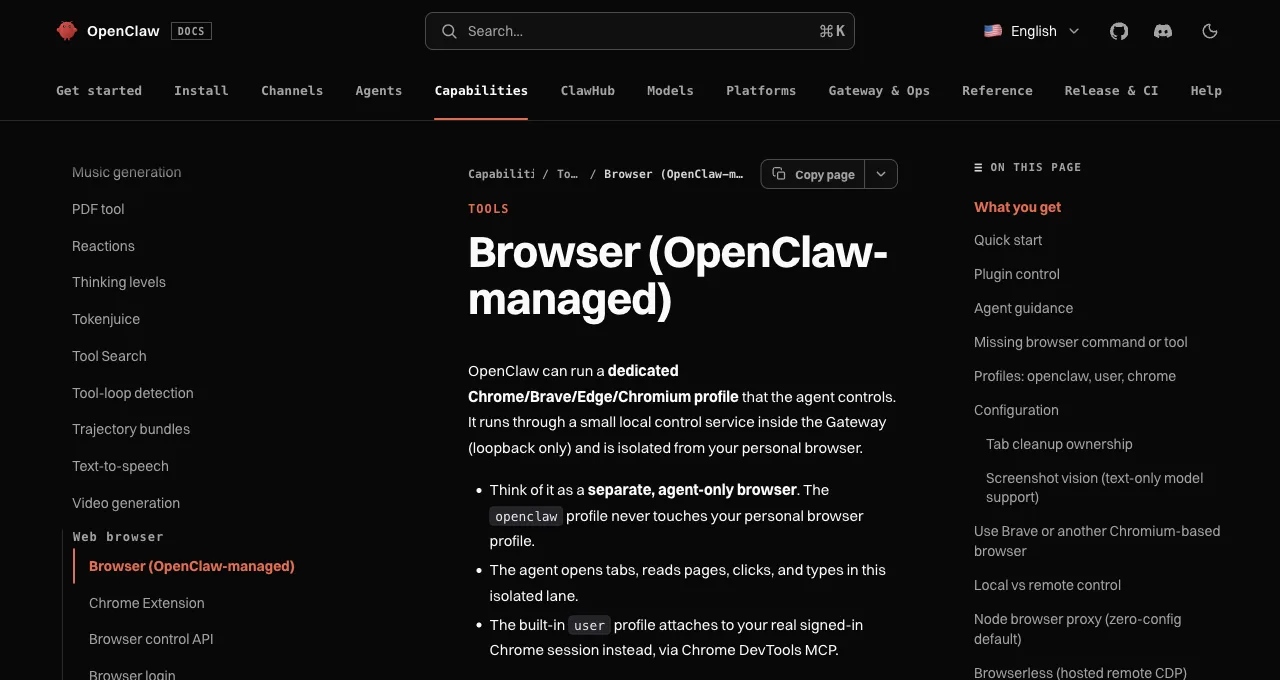
The default, and a genuinely well-designed one: OpenClaw runs a dedicated Chromium-family profile controlled through a local loopback service, described in the docs as "a safe, isolated surface for agent automation and verification" that is explicitly "not your daily driver." It gets its own user data dir and its own ports (18800-18899 range, deliberately avoiding 9222 collisions). On macOS, the current CLI can copy selected cookies from a Chrome-family profile into that separate profile; local storage and IndexedDB remain behind, so this is not a full profile clone.
The agent sees one browser tool covering the lifecycle (start/stop/tabs/open/navigate/act/snapshot/screenshot), acts on stable snapshot ref IDs rather than brittle selectors, and a bundled browser-automation skill teaches it the recovery loops. Security defaults are thoughtful: SSRF protection fails closed, and private-network access is off unless deliberately enabled.
Its normal boundary is no existing logins. The optional macOS cookie import is narrower than a profile clone and does not bring local storage or IndexedDB; if a site needs an active session, use the documented attach/extension route or a browser you explicitly provision for the task.
One configuration detail that costs new users an hour: tool profiles. The coding profile includes web search and fetch but not the full browser tool; if your agent claims it has no browser, add it explicitly with alsoAllow: ["browser"] rather than hunting for a missing install.
Option 2: Attach to your Chrome (user profile)
Set profile to user and OpenClaw attaches to your real, signed-in Chrome through the DevTools route. The catch is presence: Chrome raises a blocking "Allow remote debugging?" prompt, and as the docs put it, "someone must be at the computer" to approve it.
That makes this the sit-with-it mode: right when you're at the desk anyway (supervising a delicate task in your accounts, debugging a page state only your session shows), wrong for anything scheduled or remote. It shares every property of DevTools auto-connect setups elsewhere: the attached profile is exposed to the agent for that session, with a shared window and turn-taking. The prompt-per-attach friction is deliberate and worth respecting rather than engineering around.
Option 3: The extension relay (chrome profile)
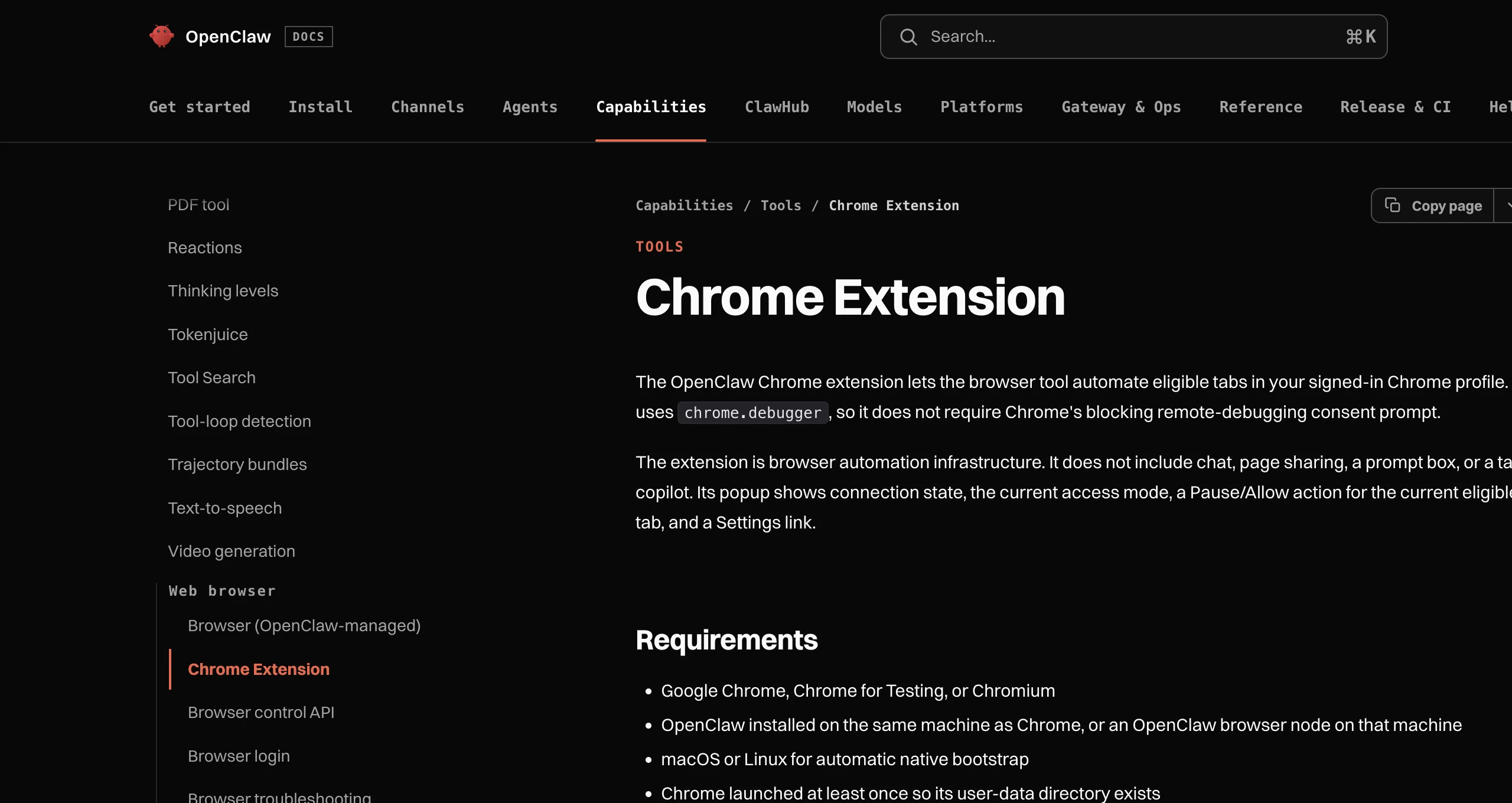
The relay is OpenClaw's distinctive piece: a Chrome extension that drives eligible tabs in your signed-in Chrome through chrome.debugger, without the remote-debugging port or its blocking consent prompt. That is why (in the docs' words) it "works from a phone with nobody at the desk." Pairing happens on the extension's first native call through the Gateway, secured with connection-bound HMAC proofs.
Install the native host before adding the official extension with openclaw browser extension install; Chrome or Chromium must have been launched once, and Windows keeps manual pairing. Access control is tab-scoped and worth configuring: All tabs exposes eligible ordinary tabs except paused tabs, while Selected tabs uses the OpenClaw tab group as the boundary and immediately detaches anything ungrouped. Incognito and internal chrome:// pages stay out of reach; file:// needs Chrome's explicit file-URL permission.
This is the most direct option when a task specifically needs an eligible tab in your Chrome while you are away, for example checking an account from your phone. Its cost is the same possession problem every takeover route has: the agent is working in the browser you'll want back at your desk, and heavy parallel work is not what one personal Chrome is designed for. Fresh pairings may expose All tabs, so switch to Selected tabs before granting access to a sensitive profile.
Option 4: An external logged-in browser
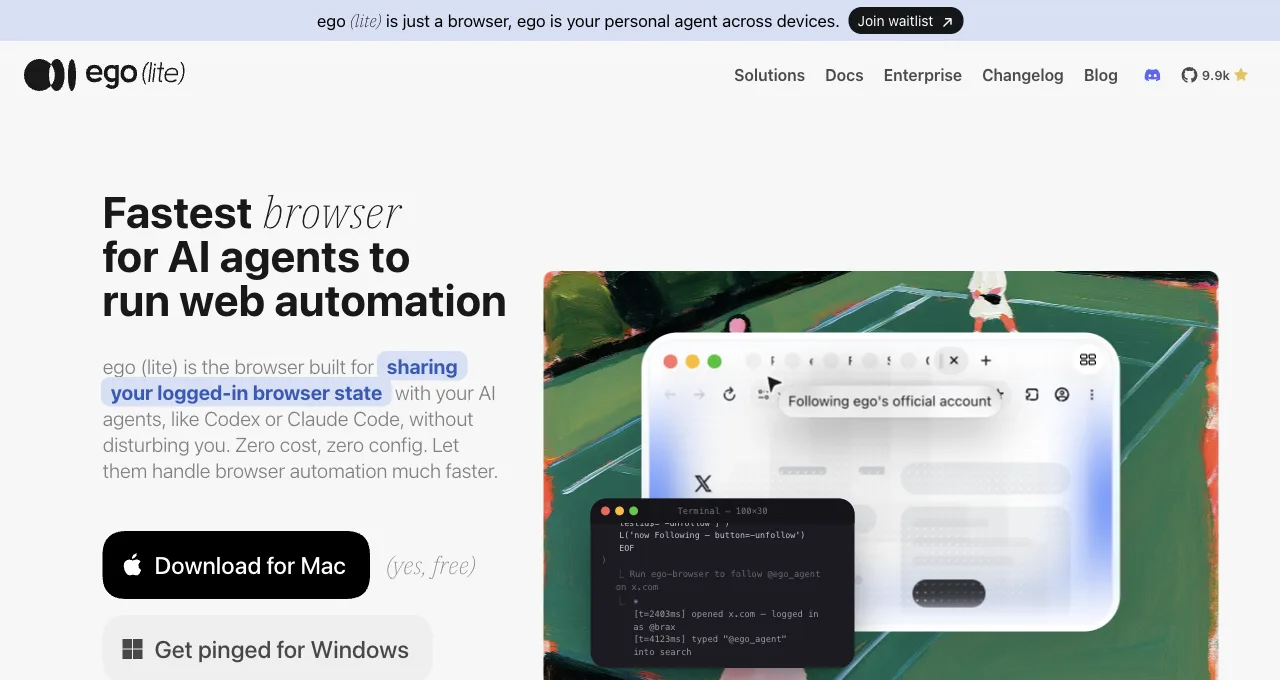
The external route adds a separately provisioned browser rather than combining the first three options. OpenClaw is a shell-capable agent, and a supported setup can reach ego(lite) through the ego-browser entry. Its isolation and login behavior depend on how that browser and its Spaces are provisioned.
ego(lite) is a browser OpenClaw can drive (OpenClaw is on its supported list alongside Claude Code and Codex). Nothing has to stay connected between calls, no attach prompt waits for someone at the computer, and the agent does not compete with you for the current tab or window focus.
The division of labor is explicit: OpenClaw plans and issues commands, while ego(lite) executes them in a separately provisioned browser. Workflows can run as scripts outside the model loop, and concurrency and account limits still apply. This route can avoid borrowing your everyday Chrome when configured that way, but it is not a blanket security guarantee.
The executor side of that division is measured: on Real-World Bench, 31 tasks against live sites with the same model (gpt-5.6-sol) and judge, run 2026-08-19 (the GitHub Trending weekly Python pull, a calculator.net mortgage worked through to monthly payment and total interest), ego(lite) closed out 93.5% of 31 tasks perfectly, first among the five tools measured. The benchmark harness is open source on GitHub.
What this option lacks: OpenClaw's native snapshot-tool integration (the agent scripts instead) and the relay's from-your-phone reach into your actual Chrome tabs.
How do the four options compare?
Three dimensions decide the choice: whose logins, how isolated, and what setup costs.
| Option | Login state | Isolation | Setup cost |
|---|---|---|---|
| OpenClaw-managed | None; agent-only profile | Separate agent profile by design | None; it's the default |
| User attach | Your Chrome, fully | None; it is your browser | A permission prompt per attach, human present |
| Extension relay | Your Chrome, tab-scoped if configured | Tab-group boundary at best | Extension install + Gateway running |
| ego(lite) external | Explicitly provisioned browser state | Own browser, own Spaces, parallel | Download + onboarding; free |
A single day can legitimately use three of the four. Morning: OpenClaw verifies a docs page renders correctly in its managed browser (public, isolated, default). Midday: a recurring task pulls numbers from two authorized dashboards through ego(lite) Spaces while you work, subject to account and site limits.
Evening, from your phone: the relay checks one thing in your actual Chrome that only your selected tabs can answer. The options address different possession models; the external browser is useful when a task needs both a separately provisioned login and workspace isolation, with the boundaries set by your configuration.
Download ego(lite) for Mac, free, or see the general guide to agents and login walls; the routes map one-to-one.
FAQ
What is the OpenClaw browser relay exactly?
The Chrome-extension-based driver behind the chrome profile: it relays agent commands to tabs in your signed-in browser through OpenClaw's Gateway, without opening a remote-debugging port, secured by connection-bound HMAC proofs. Its distinguishing property is unattended operation: no attach prompt to approve.
Can OpenClaw use cloud browsers?
Yes: remote CDP profiles attach to hosted providers (the docs name Browserless, Browserbase, and Notte) via a cdpUrl. Same trade as every cloud browser: scale and unattended infrastructure, none of your personal logins.
Can OpenClaw drive ego(lite) and its own managed browser in the same session?
Yes; they don't share anything. The managed browser is a tool OpenClaw owns; ego-browser is a shell command OpenClaw runs. A session can verify a public page in the managed profile and pull logged-in data through an ego(lite) Space back to back: public pages belong to the managed profile, logged-in work belongs to the external browser.
Which option is safest for sensitive accounts?
Ranked by blast radius: managed (isolated by default), external ego(lite) (sessions you explicitly grant, scoped to task Spaces and a browser that isn't your daily one), relay with Selected tabs (tab-group boundary), then user attach and relay-all-tabs (full profile). Match the option to the task's actual sensitivity rather than defaulting to the most capable. Keep OpenClaw's SSRF policy fail-closed; use exact allowed hostnames only when a reviewed workflow needs them, and do not enable dangerouslyAllowPrivateNetwork casually.
Why does my agent say it doesn't have a browser tool?
Almost always tool profiles: the coding profile ships web search and fetch but not the full browser tool. Add alsoAllow: ["browser"] to the profile config; no reinstall involved. If the tool exists but won't start, run its doctor subcommand before anything else.
Does the extension relay work on browsers other than Chrome?
The managed profile supports the Chromium family (Chrome, Brave, Edge, Chromium), while the relay path is documented against Chrome with its extension model; check current docs for your specific browser before planning around it.