Cursor browser automation: MCP, fixes, and alternatives


The core conclusion first: Cursor's built-in Browser is a strong tool for previewing and verifying what you're building, with workspace-scoped state, approval controls, and optional inline or separate-window display. It does not automatically reuse your personal Chrome profile. Past that boundary you can choose Browser MCP to take over a connected browser, Playwright MCP for a full automation browser, or ego(lite) for a full Chromium with your own browser state.
Cursor ships a built-in Browser: an in-editor pane or separate window the agent controls through browser tools, with no external MCP setup. Screenshots are provided as images and browser logs can be read selectively. For "open my dev server and check the layout," it is a useful fit; other workflows still depend on permissions and workspace state.
What can Cursor's built-in Browser actually do?
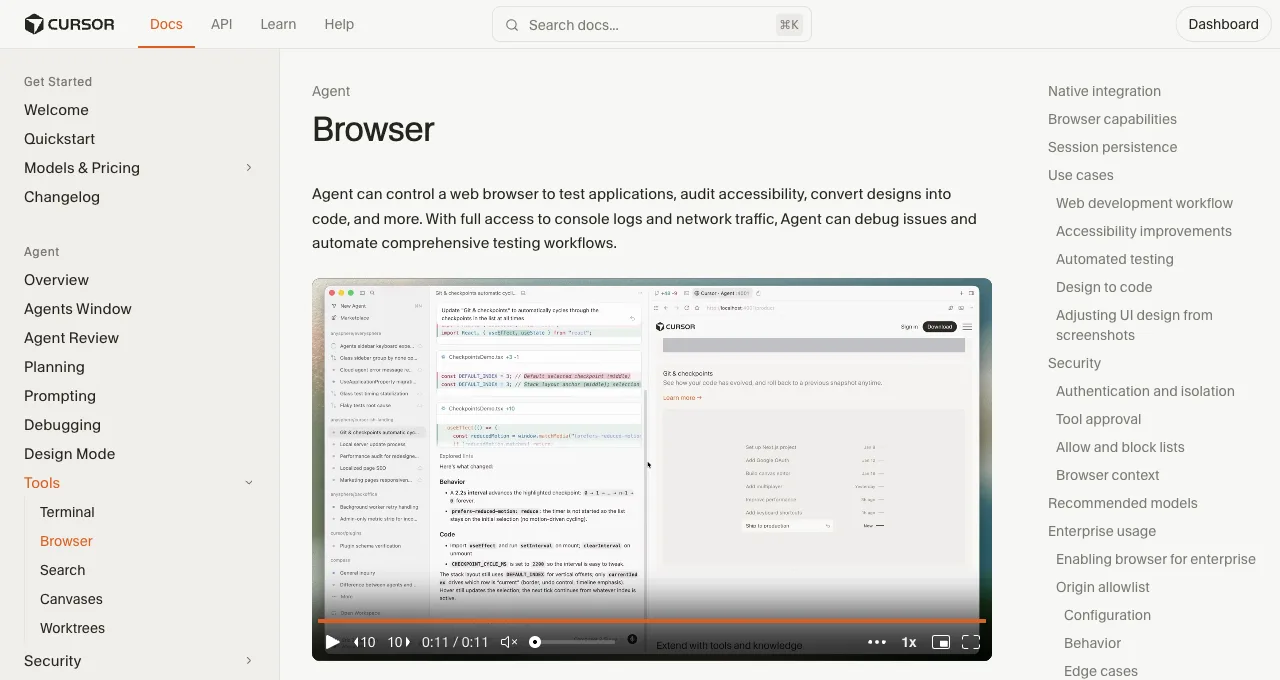
Per Cursor's docs, the agent gets full control of an in-editor web view through MCP tools: Navigate, Click, Type, Scroll, Screenshot, Console Output, and Network Traffic, with no external tools to install. Two design choices make it better than a toy: the agent sees screenshots as images rather than text descriptions, and browser logs go to files the agent can grep instead of flooding context.
The boundary is equally explicit. State is scoped: cookies and storage persist per workspace in an isolated context. Your personal Chrome sessions are not automatically inherited; if you sign in inside the workspace, you are maintaining a separate session.
Control is gated: browser tools require approval by default, with allow-listed and auto-run modes behind settings (and Cursor's own warning to never auto-run on untrusted sites). The browser can appear inline or in a separate window, so display and focus behavior depend on your settings.
So the built-in Browser's honest job description is: preview and verify what you're building, in the workspace, under supervision. Everything else is the next section.
What are the three routes beyond it?
Two extension routes with opposite trades, and a third that combines what they each get right.
Route A: Browser MCP (your browser, taken over)
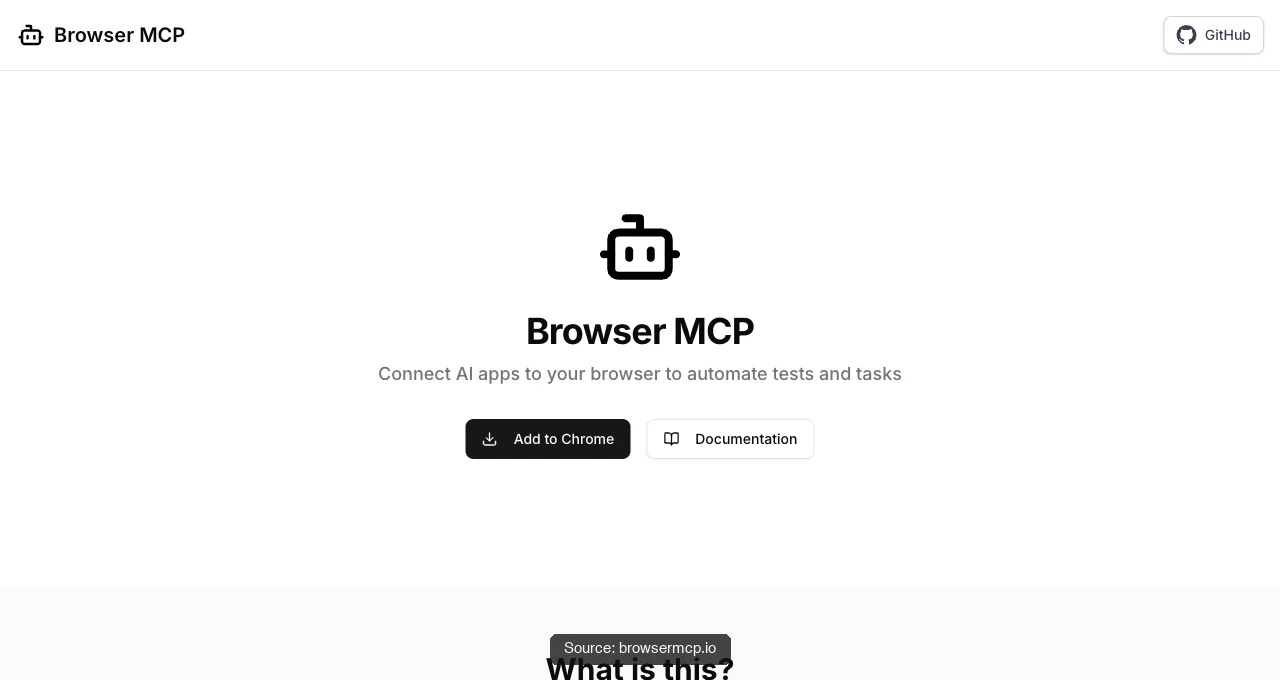
An extension-plus-server pair connecting Cursor to the browser you're using: automation runs locally and "uses your existing browser profile, so permitted sessions may remain available." Fastest path to logged-in tasks; the trade is that it drives your actual window while you supervise and manage its permissions.
Route B: Playwright MCP (a full automation browser)
Add the standard block to Cursor's MCP settings ({"mcpServers": {"playwright": {"command": "npx", "args": ["@playwright/mcp@latest"]}}}) and the agent gets cross-browser, headless-capable automation with deterministic element refs. Its default persistent profile keeps state for that automation profile between sessions; it does not automatically inherit your personal Chrome logins. Isolated mode and extension attachment are separate choices, and the measured token bill on long sessions (89K–114K per test run in one published measurement).
Route C: ego(lite) (a real Chromium browser you and the agent share)
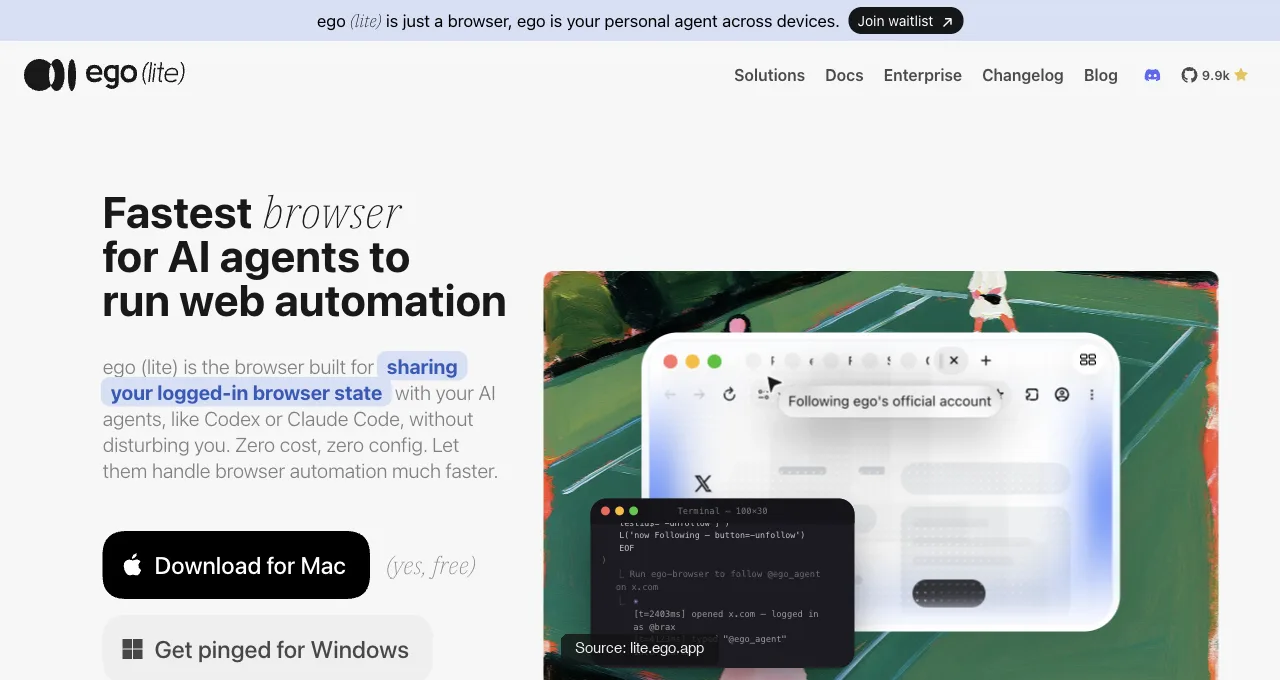
ego(lite) is a full Chromium with tab groups, bookmarks, saved passwords, extensions, and downloads, not a panel inside your editor.
Provisioned state can let the agent work in its own Space without occupying your editor or active Chrome tabs, and whole workflows can execute outside the model's context. Re-authentication may still be required, and the browser does not live inside Cursor's pane or replace its debug panels.
Here's the shape of a skill call, taken from a recorded ego-browser session against Hacker News: a task space opens, navigates, and returns only the fields asked for.
ego-browser nodejs <<'EOF'
const task = await egoBrowser.newTaskSpace('evidence-egobrowser-hn')
console.log({ taskSpaceId: task.id })

await task.page.goto('https://news.ycombinator.com/', { waitUntil: 'load', timeout: 20000 })
const title = await task.page.title()
const topStory = await task.page.locator('.athing .titleline > a').first().innerText()
const points = await task.page.locator('.subtext .score').first().innerText().catch(() => null)
console.log({ title, url: task.page.url(), topStory, points })
EOF

# real output
{
  "taskSpaceId": 13
}
{
  "title": "Hacker News",
  "url": "https://news.ycombinator.com/",
  "topStory": "Qwen 3.8 27B",
  "points": "412 points"
}
About 150 characters back to the agent in this recorded example. Route B's published Playwright MCP measurements land at 89K–114K tokens for a full test because each step ships an accessibility snapshot; actual usage varies by task and configuration.
Route C also has a measured result on one representative task suite: on Real-World Bench, 31 tasks against live sites with the same model (gpt-5.6-sol) and judge, run 2026-08-19 (including a Zillow plus GreatSchools relocation shortlist and Amazon review mining through the on-page review keyword search), ego(lite) scored perfect on 93.5% of 31 tasks. This is not a guarantee for every Cursor workflow. The full run is inspectable, task by task, on GitHub.
The four surfaces, compared where they differ:
| Surface | Your logins | Runs while you work | Setup |
|---|---|---|---|
| Built-in browser | No; isolated per-workspace state | Inline pane or separate window, by display setting | None |
| Browser MCP | Yes; the connected profile you grant | No; it drives your browser | Extension + server config |
| Playwright MCP | Not automatically; separate persistent profile by default | Yes; separate browser | One config block |
| ego(lite) | Selected state can be provisioned | Yes; its own Space | Download + onboarding; provision selected state |
How do you fix the three common failures?
Three symptoms cover most Cursor browser threads; check them in order, because the first two are settings behaving as designed rather than anything broken.
| Symptom | Likely cause | Fix |
|---|---|---|
| Built-in Browser can't reach the dev server | Wrong port or the server isn't detected | Start the dev server first, then tell the agent the exact URL and port; it may detect running servers, but explicit beats implicit |
| Browser tool calls get blocked or stall | Approval mode or origin allowlist doing its job | Approve the pending call, or review the approval mode and (on enterprise) the Browser Origin Allowlist; navigation to non-allowed origins blocks click/type/navigate afterward by design |
| An external MCP server shows red / never connects | Node missing in Cursor's shell, or config in the wrong file | Check the runtime version required by that MCP server in a Cursor terminal, and remember project .cursor/mcp.json overrides the global ~/.cursor/mcp.json for that workspace |
Which setup for which work?
Keep the built-in Browser for what it's best at: previewing the app you're building, screenshot-verifying UI changes, and reading console errors, all without installing anything. Add Playwright MCP when the work becomes testing (cross-browser, headless, CI-adjacent).
Add Browser MCP or ego(lite) when the work needs your logins, and choose between them on window ownership: Browser MCP borrows the browser you're using; ego(lite) runs the task in its own Space while your editor and your Chrome stay yours.
A realistic full setup for a Cursor developer: built-in Browser for the dev loop, ego(lite) for logged-in daily tasks, and that's it until a specific need (CI tests, performance traces) names its own tool.
Two worked examples to make the division concrete. Dev-loop task, built-in Browser: "open localhost:3000, screenshot the pricing section, and fix the overflow on mobile width"; the agent sees the screenshot as an image, edits the CSS, re-screenshots, done, all inside the editor.
Logged-in task, ego(lite): "pull this week's numbers from the three vendor dashboards and drop them in a table"; the agent writes one script through ego-browser and runs the whole flow against the state you provision.
Try routing each task to the other surface and you'll feel the boundary immediately: the first has no business needing your logins, the second has no business occupying your editor.
Download ego(lite) for Mac, free app, or compare the six browser MCP options (the scorecard transfers to Cursor as-is).
How do you scale Cursor browser automation for data collection?
Scale the data pipeline outside the model: queue URLs, cap concurrency per origin, persist cursors, cache unchanged pages, and validate each batch before writing it downstream. Cursor can coordinate an adaptive browser step, but a single IDE session is not a scraper fleet. For hundreds of public pages, use an API, HTTP client, or dedicated workers and reserve browser automation for the dynamic subset.
- Start with a representative batch. Measure valid rows, peak memory, browser crashes, retries, and origin response codes before increasing workers.
- Isolate workers and sessions. Use one profile or context per identity, never share cookies across workers, and keep a kill switch outside Cursor.
- Back off and checkpoint. Pause on 429, 403, CAPTCHA, or account warnings; retry only transient failures with a bounded delay and resume from a saved cursor.
Why can't Cursor see the connected browser tools?
First identify whether you expect Cursor's built-in Browser, Browser MCP, or a custom MCP server. They are separate surfaces with separate configuration and permissions. Check that the correct agent mode is active, the MCP server is enabled in Cursor's settings, the extension is installed in the active browser profile, and the tool is approved for the current workspace.
- Restart after configuration changes. Reload the window or MCP server, then inspect the server log and tool list. A connected tab alone does not mean the agent has been given a browser tool.
- Test a public page. If a public page works but an OAuth or Grafana session does not, the boundary is authentication, domain policy, or profile scope.
- Keep the tool list intentional. Disable duplicate browser servers and unused tools. Too many schemas can slow planning and make the wrong tool look available.
Prove tool discovery separately from process startup
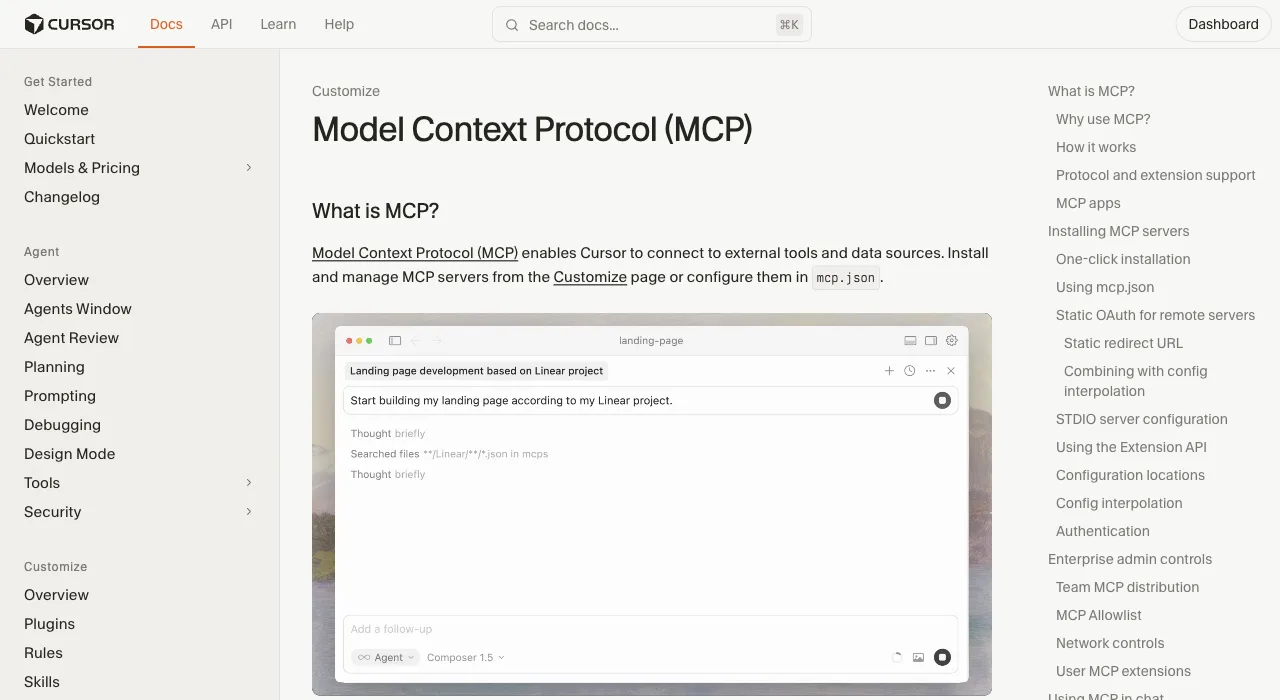
Use Cursor's current MCP Logs and tool list to identify the failing layer. Cursor merges global and project mcp.json files, with the project definition taking precedence for a duplicate server name. Confirm the effective command, arguments and environment before restarting an unrelated browser. The built-in Browser works without an external MCP server; its workspace state and approvals remain a separate route.
| Owned SDK condition | Recorded standalone SDK result | Next diagnostic check |
|---|---|---|
| Normal server | Connected; fixture_status listed and callable. | Now verify the intended browser and application outcome. |
| Disabled fixture tool | Connected; tools/list returned an empty list. | Inspect tool registration and enablement rather than treating process startup as discovery. |
| Tool execution error | Connected; the listed tool returned isError: true. | Read and resolve the tool error before reporting a successful task. |
| Diagnostic written to stdout | The client recorded a JSON parse error but still loaded the tool in this run. | Send server diagnostics to stderr. Recovery here is not a guarantee for another client. |
| Missing executable | Launch failed with ENOENT. | Check the executable path in the environment that launches the MCP server. |
| No initialization response | The test reached its configured 1800 ms initialization deadline. | Inspect server startup and protocol compatibility; do not assume a longer browser navigation timeout fixes it. |
These six conditions were each run once on October 26, 2026 with an owned stdio server and TypeScript MCP SDK 1.32.1. That SDK used its supported 2025-11-25 initialization-based protocol. This is a local connection smoke test, not a Cursor UI test, a browser MCP product comparison, or validation of the newer 2026-07-28 protocol. The current stdio specification also requires protocol messages on stdout and permits diagnostics on stderr; stderr output alone is not proof of failure.
Inspect the six MCP connection conditions and exact client/server code
Cursor MCP configuration, tool controls and logs
Current MCP stdio framing rules
Keep approval policy separate from connectivity. Cursor's current help describes Auto-review behavior for version 3.6 and later, so check the active version and run mode rather than assuming every MCP call always prompts. For ego(lite), the parallel check is whether the ego-browser command reaches the intended task Space. A CLI on PATH, an MCP process that starts, and an application result that is actually saved are different pieces of evidence.
How do you fix Cursor browser freezes and crashes?
Reduce the reproduction to one workspace, one browser, and one action. Save the prompt and logs, stop duplicate agents, and check memory, extension status, MCP process output, and the browser's final URL. A freeze after closing a browser or typing an @browser command can be a stale tool session or extension process, not a page bug.
- Save before restarting. Commit code, preserve screenshots and execution logs, and record the model and active MCP servers.
- Disable integrations one at a time. Reproduce with the built-in Browser, then add external servers back individually to find the failing process.
- Bound the task. Use a clear done condition, action limit, and timeout. Cancel an unchanged loop instead of letting it consume the context window.
How do you control Cursor browser token and subscription costs?
Control cost by choosing the smallest capable model, limiting context, and moving deterministic work out of the agent loop. Screenshots, long browser logs, repeated MCP schemas, retries, and parallel cloud agents all add usage even when no code is produced. Cursor's plan and usage panel are the authority for current limits; community reports are not a pricing table.
- Use focused observations. Return a locator, row slice, console error, or network response instead of a full page dump.
- Set budgets and stop conditions. Cap actions, retries, duration, and parallel workers. Alert on quota changes before a recurring job runs.
- Measure accepted work. Track cost per validated row or fixed UI outcome, including manual repair and failed runs.
How do you make Cursor project rules and browser workflows persist?
Put durable instructions in the repository's documented rules file or project settings, keep them short and testable, and verify that the current workspace loaded them. Rules should state when to use a browser tool, what domains are allowed, how to validate results, and which commands must run before a PR. They cannot override a missing tool, a site permission, or a safety approval.
- Make the rule observable. Require a named command, test output, or artifact. Avoid vague instructions such as “always check the browser.”
- Scope by workspace. Keep production, personal, and demo browser permissions separate. Review inherited rules when opening a different repository.
- Validate after compaction. Restate the task, rules, and current checkpoint after a context reset; do not assume the agent retained every instruction.
Which models and automation surfaces should Cursor use?
Choose a model by measured completion on your browser task set, tool-call reliability, latency, context window, and cost. Use a stronger model for ambiguous dynamic pages or recovery, and a smaller model or script for routing and extraction. Check Cursor's current model and subagent availability in the product UI; plan entitlements and cloud-agent capabilities change independently of browser support.
Run automations from a visible, reviewable surface: a local script, n8n workflow, or Cursor task with a bounded command. Keep browser actions, model choices, and approvals in the execution record so a failed subagent can be replaced without losing the workflow.
When does visual context help Cursor debug UI bugs?
Use a screenshot when the defect is visual: spacing, overlap, responsive breakpoints, typography, canvas, or a state that the DOM does not describe. Pair it with the URL, viewport, browser, expected result, and the smallest reproduction. Use console output, network traffic, and DOM inspection for behavioral bugs; a screenshot alone cannot explain a failed request or incorrect state.
Ask Cursor to compare before and after at the same viewport and to name the element it changed. Keep screenshots free of secrets and private customer data, especially when using cloud agents or sharing a PR.
How can a Slack message safely trigger a Cursor-generated PR?
Use Slack as a request intake, not an authorization bypass. A webhook or workflow should validate the sender, repository, branch, issue scope, and allowed commands; create a task record; and ask for approval before an agent edits or pushes code. Cursor can run tests and browser checks, but a human should review the diff and CI result before merge.
- Normalize the request. Convert free text into a structured issue with acceptance criteria, environment, and owner. Reject unknown repositories or destructive commands.
- Run in an isolated workspace. Use a temporary branch and least-privilege token. Keep browser sessions and secrets out of the generated PR.
- Publish evidence. Include tests, screenshots or traces where relevant, changed files, and known limitations. Require a reviewer to approve the final PR.
FAQ
How do I open a browser in Cursor?
Ask the agent to use the Browser: it opens as an in-editor pane (or a separate window, per display settings) with no installation. On enterprise plans, an admin may need to enable browser features under MCP Configuration first.
Does Cursor's browser keep me logged in?
Within a workspace, Cursor documents persistence for cookies, local storage, and IndexedDB between Agent sessions. It is still an isolated context, so your personal Chrome sessions are not automatically there; logging in inside it means maintaining a separate set of sessions. Persistence is workspace-scoped, not a promise of cross-device sync.
Which browser MCP works best with Cursor?
Same answer as for Claude Code, since these are all standard MCP servers: Playwright MCP for testing, Chrome DevTools MCP for debugging, Browser MCP for logged-in takeover. Our six-option scorecard covers the trade-offs; swap the install commands for Cursor's mcp.json format, and remember the project-level file overrides the global one per workspace.
Can the Cursor agent watch network requests and console errors?
Yes, in the built-in Browser: Console Output and Network Traffic are first-class tools, logs write to files the agent can grep selectively, and screenshots arrive as images the model actually sees. That trio is why the dev-verification loop belongs on the built-in surface even after you add external routes.
Is Cursor's built-in browser safe to auto-run?
Cursor's own docs say it plainly: manual approval is the recommended mode, and never use auto-run with untrusted code or unfamiliar websites, because allow/block lists are best-effort against prompt injection. Auto-run is for your own dev server, not the open web.