
Google Antigravity browser automation: setup and fixes

The core conclusion first: Antigravity's Browser Subagent drives a local Chrome inside a separate profile, and the first checks for a browser-not-working report are usually Chrome availability, the Browser Tools toggle, and the URL allowlist. Those checks do not rule out OS permissions, extension state, network policy, or a product regression.
The separate profile also does not carry your regular Chrome logins, by design. Antigravity's newer Remote Control feature solves a different problem: reaching the Antigravity session and its local workspace from another browser, not importing that session into a neutral automation tool.
Antigravity's browser story is genuinely distinctive: the IDE's agent can "open, read, and actuate a local Chrome browser," and it records what it did as artifacts you can replay: screenshots and action videos attached to the task.
So: the architecture in one section, correct setup, the fix checklist in symptom order, and the boundaries where a different tool is the answer. Everything quoted below comes from Google's own Antigravity docs, so you can verify each claim against the source as the product evolves.
How does Antigravity's browser automation work?
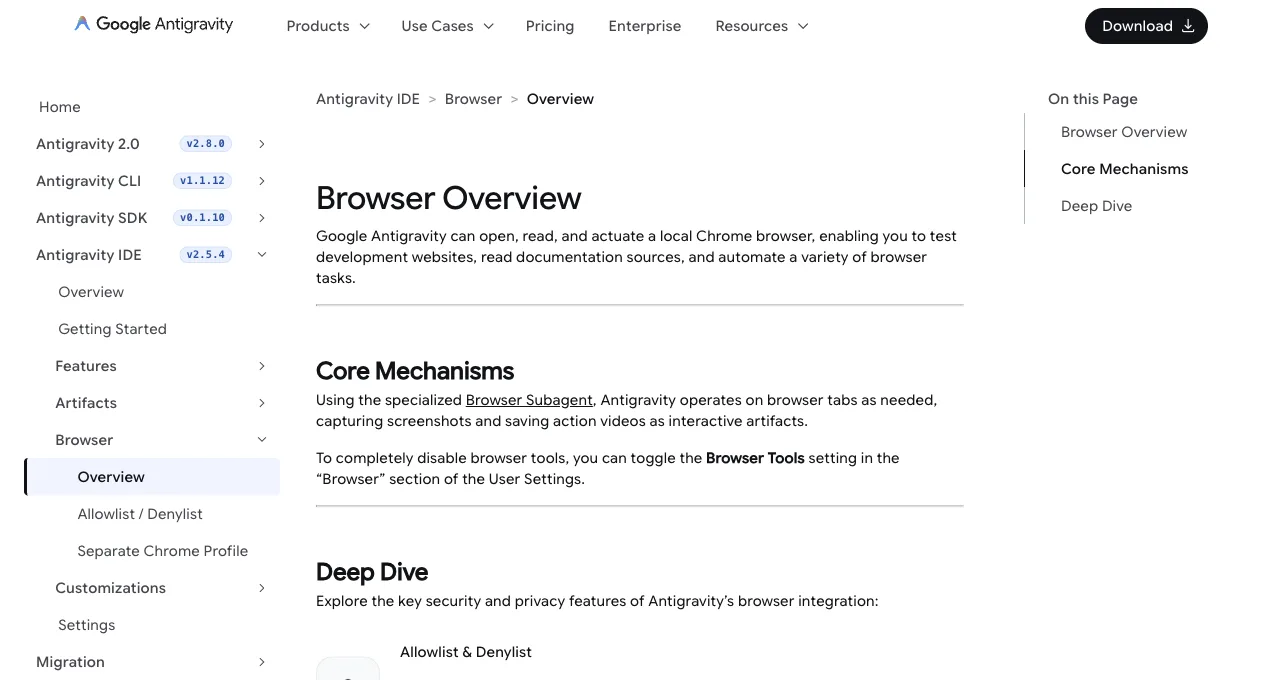
Three pieces, per Google's docs. The driver is a specialized Browser Subagent that "operates on browser tabs as needed": your main agent delegates browser work to it rather than holding the wheel itself.
The surface is a local Chrome, but not your Chrome: work happens "inside a completely separate Chrome profile to protect your personal data," a real security decision with a real consequence we'll get to.
And the output can be evidence: the subagent works by "capturing screenshots and saving action videos as interactive artifacts," so documented browser runs can leave a replayable record in the IDE.
That artifact trail is the feature Antigravity has that most agent browsers don't: verification is built into the medium. When the agent says it tested your signup flow, there's a video.
It can improve review more than it changes automation. A task run that includes a recording of the flow being exercised gives reviewers another artifact alongside tests and logs; it does not replace rerunning a security- or data-sensitive workflow.
Delegate, isolate, record. That's the design.
How do you set it up correctly?
Four checks make a useful first setup, in order. Have a supported Chrome installation available and current; the documented Browser Subagent path actuates a local Chrome, so a missing or incompatible binary prevents that path from starting.
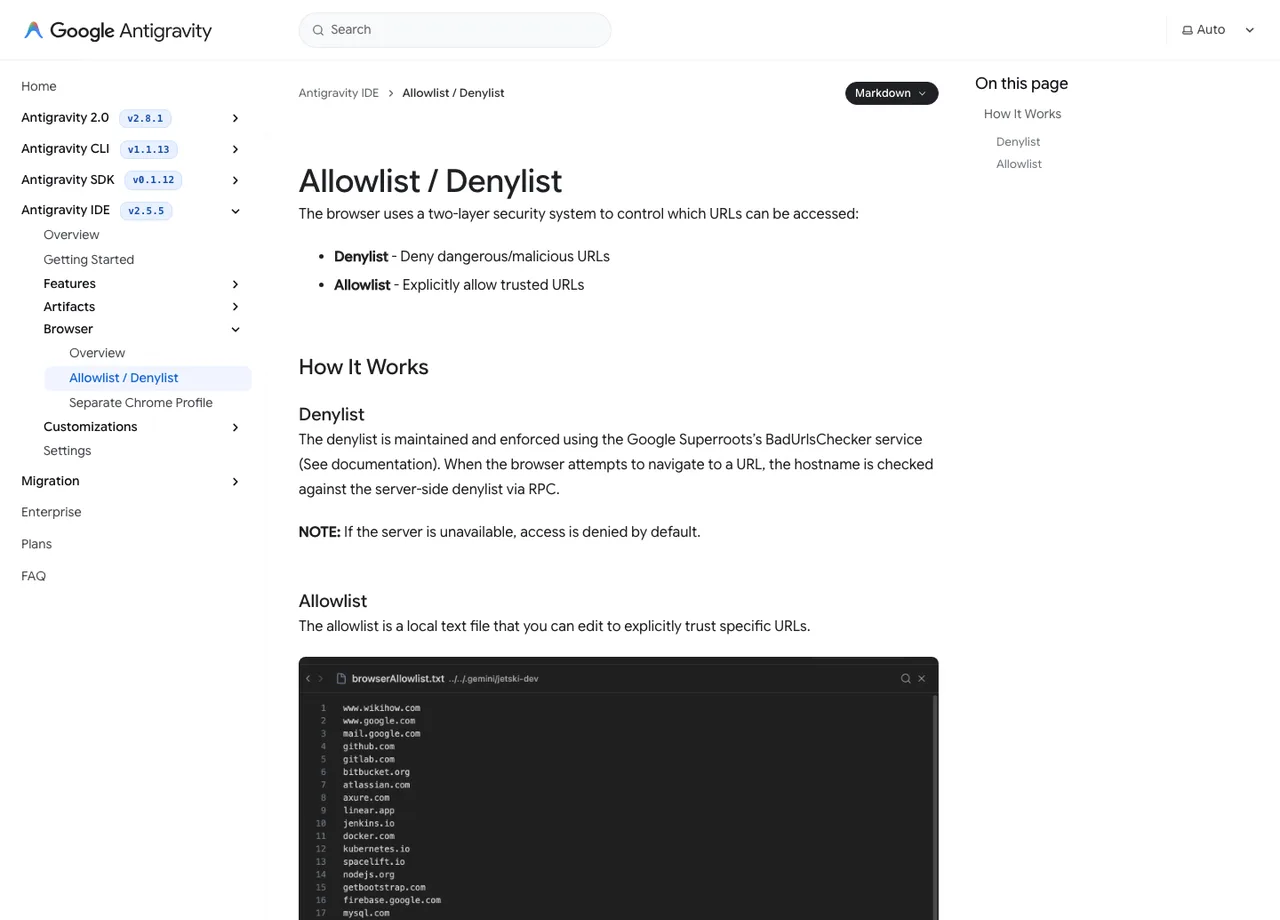
Confirm the master switch: Browser Tools lives in the Browser section of User Settings, and it's the on/off for the whole capability. Review the URL security model: the two-layer Denylist and Allowlist decides which URLs the subagent may touch, and a too-narrow allowlist is indistinguishable from a broken feature when the agent silently can't reach your target.
Then run a first task that exercises the loop end to end: "open localhost:3000, screenshot the landing page, and attach the recording," and confirm the artifacts appear.
If that first task produces a screenshot and a video, the core path is working; later failures can still come from prompts, permissions, allowlist changes, browser updates, or target-site policy. On the allowlist specifically, scope the subagent to the development domains and documentation sites you actually use so the two-layer model remains an effective boundary.
Browser not working or won't open: the checklist
Symptom-ordered, cheapest checks first. These map to the architecture above rather than to any secret knowledge, which is exactly why they work.
| Check | Why it's the likely cause |
|---|---|
| Browser Tools toggle is actually on | It's the master switch, it lives in User Settings under Browser, and it reads as "broken" when someone toggled it off |
| Chrome exists, is current, and isn't wedged | The subagent launches a local Chrome profile; a missing, outdated, or crash-looping Chrome fails the launch. Quit all Chrome processes and retry |
| The target URL passes the allowlist/denylist | The two-layer model blocks silently from the user's view; a task that "does nothing" on one specific site is usually this |
| Restart the IDE after Chrome or setting changes | Subagent-to-browser wiring is established at session level; state from before your fix can linger until relaunch |
| Update Antigravity itself | The browser feature is under active development (docs track IDE releases); a version behind can mean known-fixed behavior |
Where does it end, by design?
Three edges, all consequences of reasonable decisions. Your regular Chrome logins aren't carried over: the separate profile that protects your personal data also means the subagent browses as a stranger, so dashboards, portals, and anything behind your accounts require a separately provisioned session and an approved workflow.
It's Google-stack-shaped: the browser is a capability of the Antigravity IDE and its agent, not a general execution layer other agents can borrow. And it's a dev-loop tool: the artifact system is built around verifying your project's pages, not around running background web tasks all day while you do something else. Remote Control extends that dev loop across devices, but it does not change who owns the machine, files, credentials, or environment variables being exposed.
Inside those edges (test the app, read the docs, record the proof), Antigravity ships a built-in verification loop with recorded artifacts. A profile sign-in or allowlist entry does not turn that development workflow into a general-purpose unattended account task runner.
What are the alternatives past those edges?
Match the alternative to the edge you hit.
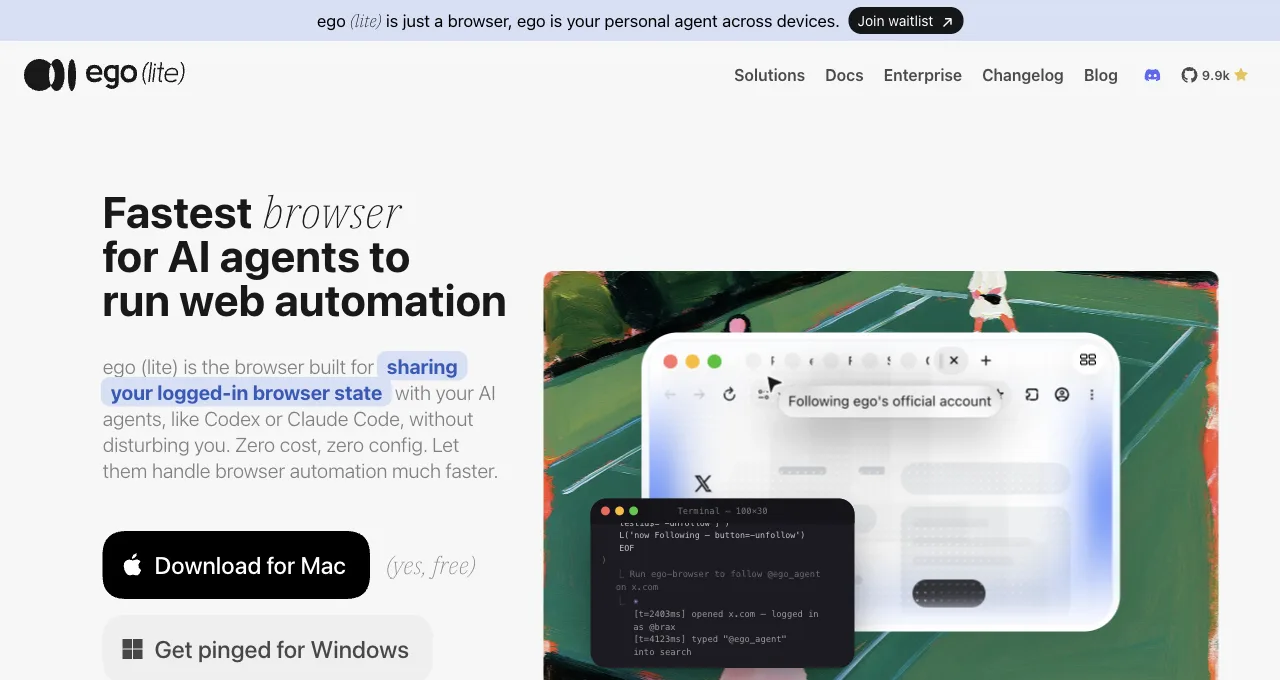
Logged-in daily tasks: consider ego(lite), a free Chromium browser that can import a Chrome profile so the agent works from logins you already hold instead of an empty profile. Session expiry, account permissions, site policy, and the supported-agent list still apply.
One data point for that recommendation: on Real-World Bench, 31 tasks against live sites with the same model and judge, ego(lite) completed 93.5% of them perfectly, which describes that task set rather than every workload. The dataset and judging harness are open on GitHub.
Deep page diagnosis (traces, heap snapshots): Chrome DevTools MCP, which pairs fine with any of the above. Cross-browser test infrastructure: Playwright, as ever.
The composition, not the replacement, is a practical endpoint for an Antigravity user: keep the Browser Subagent for its documented verify-and-record loop, and use a separately provisioned browser for logged-in work when its agent support, account permissions, and review controls fit the task.
In practice that looks like: Antigravity records the proof that the feature works, ego(lite) runs the Monday-morning dashboard pulls that have nothing to do with your codebase, and neither tool is asked to fake the other's shape.
Download ego(lite) for Mac, free, or read the login-wall guide for the session model.
What is Antigravity Remote Control and how do you enable it?
Antigravity Remote Control is a browser dashboard for connecting to and driving Antigravity 2.0 sessions running on your own laptops, desktops, or servers. It lets you view conversations, start tasks, review plans, inspect artifacts, and keep working from another device; it is remote access to an Antigravity workspace, not a new browser profile or a way for another agent to borrow the session.
Google's official setup is short:
- In Antigravity 2.0, open Settings (Cmd + , on macOS or Ctrl + , on Windows/Linux), choose App, and switch Enable Remote Control on. Give the instance a nickname if you run more than one machine.
- From any device, open the Antigravity Remote Control Dashboard and sign in with the same Google Account used by the desktop app. Select the named machine in the instance switcher, then review the session before starting or approving work.
- For a headless Linux or macOS machine, install Google's Remote Control daemon with the documented agy-daemon.sh command; Windows installation requires an Administrator Command Prompt. The daemon's one-time sign-in is separate from the editor sign-in, and its service can retain access after a reboot.
The security boundary is easy to miss: Remote Control preserves access to the host's files, build tools, credentials, and environment variables. Treat the dashboard and daemon account as privileged access to that machine, enable it only on machines you control, use a clear instance name, and turn it off or sign out when the host should no longer be reachable. If the machine is asleep, offline, signed out of the daemon, or using a different Google Account, it will not appear or reconnect; a running local task continues only while the host remains available.
Read Google's Remote Control documentation for the current command flags, settings-file locations, service lifecycle, and troubleshooting. The feature is useful when you need to continue the same IDE session from a phone or another browser; it does not remove the separate-profile limitation described above.
How do Antigravity quotas and token costs work?
Antigravity usage is governed by the Google account, plan, model, and current capacity—not by a single universal token price. A browser task can consume more quota when it loops, retries, captures screenshots, or asks a model to inspect a large page. Treat the quota indicator and any plan documentation as the source of truth, and measure cost per accepted result rather than counting prompts.
- Set a task budget. Use a bounded objective, maximum actions, and a time limit. Stop a run after repeated identical actions instead of waiting for a quota warning.
- Reduce observations. Ask for one element or state at a time, avoid unnecessary screenshots, and use a deterministic script for repeated navigation or parsing.
- Compare models on your tasks. A cheaper or faster model may be adequate for a static page but fail on a dynamic UI. Record retries, accepted outputs, and manual recovery before changing plans.
When a Gemini model appears to consume quota unusually quickly, stop parallel tasks, save the current work, and inspect the model, context, screenshots, and retry history. Key rotation or a second account does not solve an oversized workflow and can violate account policy.
How do you fix Antigravity browser connection and extension failures?
Diagnose connection failures in dependency order: the IDE, Chrome binary, Browser Tools setting, profile, allowlist, and CDP or extension path. Reproduce on a harmless public page before touching an authenticated workflow. A newly opened Chrome profile without the extension is a different browser target, not proof that the feature itself is unavailable.
- Confirm the browser target. Verify the configured Chrome executable exists, launches normally, and is the same profile or binary that Antigravity expects. Do not point at a random Chromium build without checking support.
- Check Browser Tools and permissions. Make sure Browser Tools is enabled, the extension is installed in the active profile, and the target URL is allowed by the documented denylist/allowlist model. Restart the IDE after changing these settings.
- Check the connection boundary. For CDP on WSL or a VPS, bind and forward only the intended local interface and port. Confirm firewall, proxy, and user permissions; never expose a debugging port to the public internet.
If an environment variable or custom path is missing, restore it in the supported service or shell configuration and start a fresh session. Do not set a broad home directory, disable OS security, or copy another user's profile as a workaround.
How do you stop Antigravity browser loops and control mistakes?
Prevent loops by making each browser step observable and bounded: name the expected state, use one stable locator, set a retry limit, and stop when the page does not change. A model that keeps clicking a confirmation button or rewriting the same file needs a kill switch and a smaller task, not an instruction to try harder.
- Define done. State the URL, visible success marker, expected file, or test assertion that ends the task. Ask the agent to report that evidence.
- Separate plan from execution. Approve a short plan before destructive edits, then run one browser action at a time. Keep terminal commands and browser actions in the same visible task log.
- Stop on unchanged state. After two identical screenshots, URLs, or DOM states, pause for review. Capture the error and continue only with a new hypothesis.
Prompt injection is another control failure: page text can instruct the agent to ignore its task or reveal secrets. Treat page content as untrusted, keep approvals on for side effects, and scope the browser profile and allowlist to the current task.
How do you recover from Antigravity timeouts, 429s, and data loss?
Recover by preserving the last known good state, classifying the error, and retrying only the safe class. A 429, 503, or capacity message calls for backoff and a smaller queue; an agent-terminated run calls for a saved checkpoint; a data-loss report calls for version control and backups before another refactor.
- Save before retrying. Commit or copy the current code, preserve screenshots and artifacts, and record the exact prompt, model, and task status. Never let an automatic retry overwrite the only copy of a result.
- Back off capacity errors. Wait according to the service guidance, reduce concurrency, and retry once. If capacity or rate limits persist, schedule the work later or use an approved model; do not run a tight retry loop.
- Resume from checkpoints. Split a large refactor or scrape into named steps and validate each accepted result. Reopen the last artifact instead of asking the agent to reconstruct an unknown state.
An extension or MCP that keeps Antigravity stuck on “working” is not evidence that the task is still progressing. Cancel it, inspect the process and logs, disable optional integrations one at a time, and retry with a minimal page. Keep a manual path for work that cannot be safely replayed.
How do you fix Antigravity login and session issues?
Antigravity's Browser Subagent uses a separate Chrome profile, so missing Google, Salesforce, or social logins are expected rather than a broken cookie jar. Sign in only through the normal site flow in a profile you control, and expect MFA, device checks, and account policy to require a human. Remote Control also requires the same Google Account on the dashboard and the host; changing accounts can make an otherwise healthy machine disappear.
- Verify the account boundary. Check which Google Account is signed in to Antigravity, the Remote Control dashboard, and any daemon. Use a clearly named machine and sign out old sessions you no longer control.
- Complete verification manually. Pause for OAuth, 2FA, CAPTCHA, recovery, or account-unlock steps. Do not automate verification codes, scrape a refresh token, or copy cookies from your personal browser.
- Revoke stale access. After a failed or unknown setup, review Google Account sessions, extension permissions, and daemon services. Remove access you cannot attribute to a machine or workflow.
What security and privacy controls should Antigravity users apply?
Run Antigravity as a privileged tool with a narrow profile, explicit approvals, and reversible tasks. The Browser Subagent can read page content and the IDE can access project files, terminal commands, artifacts, and—through Remote Control—the host machine. A separate Chrome profile protects personal sessions from ordinary browsing, but it does not make page content trustworthy or the host disposable.
- Keep secrets out of the task. Use scoped environment variables and least-privilege accounts. Do not place API keys, password exports, or recovery codes in prompts, screenshots, artifacts, or source control.
- Review extensions and integrations. Install Browser Tools and any cockpit or MCP integration from a source you can verify. Remove unused extensions and inspect their host permissions after an update.
- Protect remote access. Keep Remote Control on only when needed, secure the Google Account with strong authentication, and disable the daemon or sign out when the machine should not be reachable.
Local execution, a VPN, or a password manager is not a guarantee against prompt injection or harmful approved actions. Treat web pages as untrusted input, limit the allowlist, require review before publishing or sending, and keep a kill switch outside the agent.
How do you install and upgrade Antigravity on Linux?
Use the current Linux artifact and installation instructions published by Google Antigravity, then verify the archive and preserve your workspace before upgrading. Antigravity distributions and package formats can change; do not treat an unofficial Flatpak, deb conversion, or copied binary as equivalent to the supported release.
- Back up and record the current version. Commit code, export important artifacts, note extensions and settings, and confirm the daemon or Remote Control service can be stopped cleanly.
- Install the supported tar or package. Download from the official Antigravity channel, unpack into a user-owned directory, and create a desktop entry or service only with the documented paths. Verify executable permissions and the Chrome dependency.
- Upgrade as a controlled change. Stop running agents, install the new version beside the old one, launch a smoke-test workspace, and re-enable extensions or the daemon one at a time. Keep the previous artifact until the new build passes.
If a tar install works interactively but not as a service, compare the service user's PATH, HOME, display/session access, Chrome binary path, and writable directories. Avoid running the IDE or daemon as root to hide a permission error.
How do you migrate or integrate Antigravity with other tools?
Keep Antigravity's project, browser artifacts, and credentials separate when moving to another IDE, CLI, or browser agent. Export code and documented configuration; do not assume conversations, extension state, OAuth grants, or MCP connections survive an app split. Re-authenticate through the provider and verify every integration in a disposable workspace.
- For Gemini CLI or another coding agent. Move the repository and task instructions, then recreate browser access through a supported MCP or external browser interface. Antigravity's Browser Subagent and artifacts are not automatically available to another client.
- For phone or remote monitoring. Use Remote Control for the same Antigravity workspace when the host and account are online. It is not a public API and does not turn the Browser Subagent into a general-purpose remote browser.
- For logged-in recurring browser work. Use an explicitly supported external browser workflow such as ego(lite), with authorized sessions, and keep Antigravity for its verify-and-record development loop. Do not share raw cookies or debugging ports between tools.
After migration, run a small acceptance set: open a public page, test one allowed internal page, produce an artifact, stop the agent, and confirm that secrets and permissions remain scoped. A green launch is not proof that every old connection or policy carried over.
FAQ
What is Google Antigravity Remote Control?
It is a web dashboard that connects to Antigravity 2.0 desktop or headless-daemon sessions running on machines you control. From another browser you can inspect conversations and artifacts, start or continue tasks, and respond when an agent needs you. It is remote access to the existing workspace, not an anonymous cloud browser.
How do I enable Antigravity Remote Control?
Open Antigravity 2.0 Settings, choose App, and turn on Enable Remote Control. Then open the Remote Control Dashboard in another browser and sign in with the same Google Account. For headless Linux or macOS, use Google's documented agy-daemon.sh installer; Windows requires an Administrator Command Prompt.
Can I use Remote Control from my phone?
Yes, when the host machine is online and the Remote Control service is signed in. Google documents a browser-based dashboard and optional installation as a mobile web app for push notifications. A phone can monitor and approve the Antigravity session, but it does not turn the host into a general remote desktop or bypass a machine that is asleep, offline, or signed out.
Does Remote Control share my Antigravity logins with another agent?
It exposes the existing Antigravity workspace to the Google Account and browser session you authorize, including the host's files, build tools, credentials, and environment variables. It does not make those resources public, but it is still privileged access. Use it only on machines you control, keep the account protected, review prompts before approving actions, and disable the feature when remote access is no longer needed.
Is there a Google Antigravity browser extension?
The documented architecture is a Browser Subagent driving a local Chrome profile, not an extension you install from a store; the IDE manages the wiring itself. If you're searching for an extension because setup failed, the checklist above is the actual fix path.
Can Antigravity's browser use my logged-in accounts?
Not by design: automation runs in a completely separate Chrome profile precisely so your personal data stays out. You can log into sites within that profile manually, but you're then maintaining duplicate sessions; for account-centric work, a session-inheriting browser is the cleaner architecture.
Can I turn browser automation off entirely?
Yes: the Browser Tools setting in the Browser section of User Settings disables the tools, and the denylist can pin specific URLs out of reach even when they're on. Teams wary of agentic browsing get a real off switch.
Can I control which sites the agent browses?
Yes, twice over: the two-layer Denylist and Allowlist governs reachable URLs, and the Browser Tools toggle kills the capability entirely. The practical pattern is a scoped allowlist for daily work plus the denylist for anything that must never be touched, reviewed when your project list changes.
How does it compare to Cursor's built-in browser?
Same category (IDE-managed, isolated, dev-loop-focused), different signatures: Antigravity's artifact system (action videos) is its distinctive strength, Cursor's greppable logs and image-based screenshots are its. Both share the same boundary: neither carries your personal logins, and both hand off to external browsers for that work.